Bestdroidplayer.com is a reader-supported blog. If you buy a VPN or an Amazon product through our links, we may earn a commission that helps maintaining our blog. Our reviews are totally honest and we only recommend trusted VPN and ecommerce brands. Full affiliate disclosure
A VPN can make streaming on your Firestick more private, but things don’t always go smoothly. Sometimes the VPN refuses to connect. Other times, it shows a successful connection, yet your streaming apps won’t load or your internet suddenly stops working.
These problems can be frustrating, especially when you’re ready to watch a movie or your favorite show.
Fortunately, most Firestick VPN issues have straightforward solutions. Whether you’re dealing with connection errors, slow speeds, or unexpected disconnections, this guide walks you through eight practical ways to get your VPN working again.
Why Is My VPN Not Working on Firestick?
A VPN can stop working on Firestick for several reasons. The problem might come from your internet connection, VPN settings, or the device itself.
Here are some common causes:
- Unstable Wi-Fi: A weak wireless connection can interrupt your VPN tunnel or prevent it from connecting.
- VPN server issues: An overloaded or temporarily unavailable server may cause slow speeds or failed connections.
- Outdated software: Older VPN apps or Fire TV software versions can develop compatibility problems.
- VPN protocol conflicts: Certain protocols may struggle with specific networks or router configurations.
- Corrupted app cache: Temporary files can sometimes interfere with VPN performance.
- Streaming service restrictions: Some streaming platforms may detect and restrict VPN connections.
If you’re testing different VPN services, a free VPN tool can also help you compare connection behavior on a supported device. For Firestick specifically, check that the VPN offers an app compatible with your Fire TV model.
Once you’ve identified the possible causes, you can start troubleshooting.
How to Fix a VPN Not Working on Firestick
You don’t need advanced technical knowledge to fix most VPN problems. Start with the simplest solutions and work your way through these eight steps.
Step 1: Check Your Firestick Internet Connection

Before changing your VPN settings, make sure your Firestick has a working internet connection.
A VPN needs an active connection to establish its encrypted tunnel. If your Wi-Fi is unstable, the VPN may struggle to connect or disconnect repeatedly.
To check your connection:
- Disconnect your VPN.
- Open Settings > Network on your Firestick.
- Select your connected Wi-Fi network.
- Check its network status and internet connectivity.
- Open a streaming app to see whether it loads normally.
If your Firestick cannot access the internet without a VPN, restart your router and reconnect to Wi-Fi.
Once your internet connection is working, reopen the VPN and try connecting again.
Step 2: Restart Your Firestick and VPN App
Sometimes, the easiest solution is simply restarting your device.
Firestick runs multiple background processes, and temporary software glitches can interfere with VPN connections.
Here’s what to do:
- Close your VPN app.
- Navigate to Settings > My Fire TV > Restart.
- Confirm the restart.
- Wait for your Firestick to reboot.
- Open your VPN and reconnect.
On some Fire TV models, the menu may be labeled Device & Software instead of My Fire TV.
Restarting refreshes running processes and often resolves temporary connectivity problems.
Step 3: Switch to a Different VPN Server
If your internet connection works but your VPN still refuses to connect, the server you’re using might be the problem.
VPN servers occasionally experience heavy traffic or temporary network issues. Switching to another location can help establish a more stable connection.
Open your VPN app, disconnect from the current server, and select another available location.
For example, if you normally connect through Australia, you can explore available Australia servers and compare different connection options. If your VPN offers multiple servers in the same country, try another before changing regions entirely.
For general browsing and streaming, a geographically closer server is often a good starting point because it typically requires less travel distance for your data.
After switching servers, test your connection again.
Step 4: Change Your VPN Protocol
VPN protocols determine how your device establishes and maintains its encrypted connection.
Some protocols perform better on certain networks than others. If your current protocol isn’t connecting properly, switching to another option may help.
To change your protocol:
- Open your VPN app.
- Navigate to Settings or Connection Settings.
- Find the VPN Protocol option.
- Select another available protocol.
- Reconnect to your VPN.
For example, some VPN apps offer WireGuard, OpenVPN, or their own proprietary protocols.
If your app has an Automatic protocol setting, try that first. It may select a connection method suited to your current network.
The available options depend on your VPN provider and Fire TV app.
Step 5: Clear Your VPN App Cache
Firestick applications store temporary data to load faster. Over time, some cached files may become outdated or cause unexpected behavior.
Clearing your VPN app’s cache can help resolve connection errors, freezing, and crashes.
Follow these steps:
- Go to Settings > Applications.
- Select Manage Installed Applications.
- Find your VPN app.
- Choose Force Stop, then Clear Cache.
- Reopen the VPN and try connecting.
If clearing the cache doesn’t solve the problem, you can also try Clear Data.
Keep in mind that clearing app data resets saved settings and may require you to sign in again.
Step 6: Update Your VPN App and Firestick
Outdated software can lead to performance problems and connection failures.
VPN providers regularly release updates to improve stability and compatibility. Fire TV software updates may also address networking bugs.
Start by checking whether your VPN app has an available update in the Amazon Appstore or its supported distribution channel.
Next, check your Firestick software:
- Open Settings > My Fire TV.
- Select About.
- Choose Check for Updates.
- Install any available updates.
Restart your device afterward and test the VPN again.
It’s also worth confirming that your VPN supports your particular Fire TV model and operating system.
Step 7: Check for Conflicting Apps and VPN Settings
Sometimes, your VPN isn’t the only application controlling network traffic.
Running multiple VPN apps, network filters, or certain security tools can create conflicts that interrupt connectivity.
Check whether another VPN is active and disconnect it before trying your preferred VPN again.
You should also review your VPN’s Kill Switch settings if the internet stops working after a disconnection.
A Kill Switch is designed to block internet traffic when the VPN tunnel drops. If it remains active after a connection failure, your Firestick may appear to have no internet access.
Reconnect the VPN or adjust the setting temporarily to identify the cause.
Step 8: Reinstall Your VPN App
If none of the previous methods work, reinstalling the VPN app may resolve corrupted files or persistent configuration problems.
Here’s how:
- Open Settings > Applications > Manage Installed Applications.
- Select your VPN app.
- Choose Uninstall.
- Restart your Firestick.
- Reinstall the compatible VPN app from its official source.
- Sign in and reconnect.
A fresh installation restores the app’s default configuration and removes potentially problematic local data.
If the VPN still doesn’t connect, contact your provider’s support team with your Firestick model, software version, and any error messages.
VPN Connected on Firestick but Streaming Apps Still Not Working?
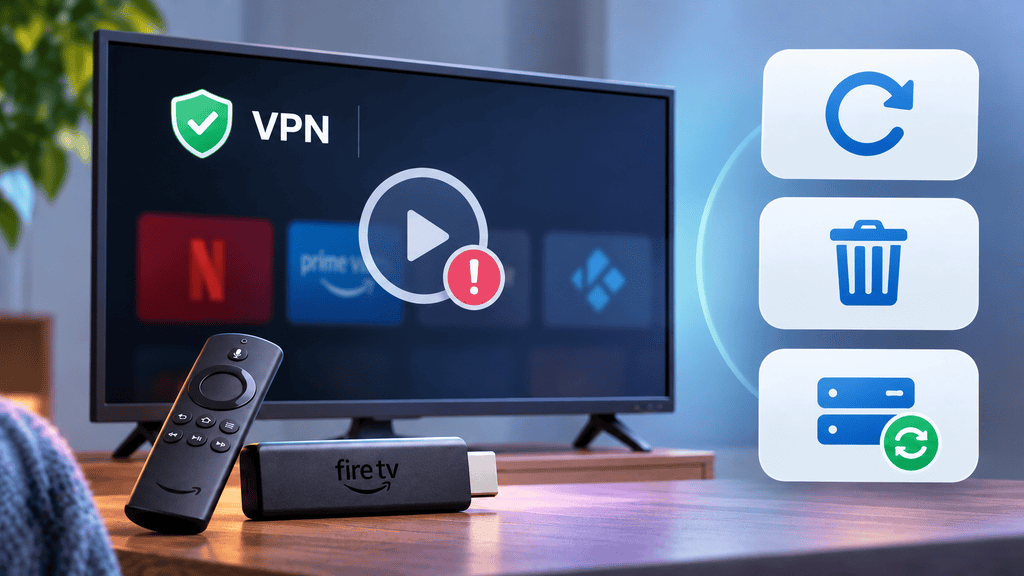
Sometimes, your VPN connects successfully, but Netflix, Prime Video, Kodi, or another streaming app refuses to play content.
This usually requires a different troubleshooting approach.
Restart the Streaming App
Close the streaming application completely and reopen it.
You can use Settings > Applications > Manage Installed Applications to find the app and select Force Stop.
Then launch it again and check playback.
Clear the Streaming App Cache
If the problem continues, clear the streaming app’s cache using the same Applications menu.
This can remove outdated temporary data that interferes with loading or playback.
Check Streaming Service Restrictions
Some streaming platforms restrict VPN connections or apply regional licensing rules.
If a particular service displays a proxy error or refuses to play videos, try another VPN server and test again.
You can also disconnect the VPN temporarily to determine whether the issue comes from the streaming service or your VPN connection.
How to Check If Your VPN Is Working on Firestick
After troubleshooting, it’s useful to verify that your VPN is actually working.
One simple method is to compare your public IP address before and after connecting.
Step 1: Open Amazon Silk Browser or another available browser on Firestick.
Step 2: Visit an IP-checking website and note your public IP address.
Step 3: Connect to your VPN server.
Step 4: Refresh the page and compare the IP addresses.
If the VPN is working correctly, the website should normally display the VPN server’s public IP instead of your regular one.
Finally, open a streaming app or website to confirm that your connection works normally.
Frequently Asked Questions
This can happen because of DNS problems, VPN routing issues, unstable Wi-Fi, or Kill Switch settings.
First, disconnect the VPN and test your internet connection. If everything works normally, try another VPN server or protocol. Restarting the VPN app may also help.
Frequent disconnections often result from weak Wi-Fi signals, server congestion, or network interruptions.
Try moving your Firestick closer to your router, switching servers, and updating your VPN app. Changing VPN protocols may also improve stability.
The problem may come from the VPN connection, Kodi itself, or a particular Kodi add-on.
First, test whether other apps can access the internet while your VPN is connected. If they work normally, restart Kodi and check the affected add-on.
Yes, some VPN providers offer free plans compatible with certain Fire TV devices.
However, free VPN features vary between providers and platforms. Before installing one, check Fire TV compatibility, available server locations, and any speed or data limits.
Final Thoughts
If your VPN isn’t working on Firestick, start by checking your internet connection and restarting the device. These simple steps often resolve temporary problems.
If the issue continues, try switching VPN servers, changing protocols, clearing app caches, or updating your software.
When your VPN connects but streaming still fails, test the streaming app separately.
By narrowing down the source of the problem, you can get your Firestick and VPN working together again without unnecessary troubleshooting.



Leave a Reply