• Skip to main navigation
  • Skip to main content
  • Skip to primary sidebar
  • Skip to footer
bestdroidplayer
  • Free Guides
  • Free Tools
    • Streaming Bitrate Calculator
  • Kodi
    • Kodi Guide
    • Best Kodi Addons
    • Best Sports Kodi Addons
      • Best Football (Soccer) Kodi Addons
      • Best NFL Kodi Addons
      • Best Cricket Kodi Addons
      • Best UFC / MMA Kodi Addons
      • Best WWE Kodi Addons
    • Best Movie Kodi Addons
    • Best Live TV Addons
    • Addons List
      • Live Sports Addons
        • Install TvTap Addon
        • Install Sportowa TV Addon
        • Install Rising Tides Addon
        • Install SportHD Addon
        • Install Fight Club Addon
      • Movies & TV Shows
        • Install Exodus Redux Addon
        • Install Magic Dragon Addon
        • Install Covenant Addon
        • Install Tempest Addon
        • Install TAZ Addon
        • Install Seren Addon
        • Install The Promise Addon
        • Install EnterTain Me Addon
        • Install The Crew Addon
        • Install Nightwing Addon
        • Install Black Lightning Addon
        • Install Shadow Addon
        • Install Asgard Addon
      • Live TV Addons
        • Install TvTap/TapTv Addon
        • Install LiveNet TV Addon
        • Install The Crew Addon
        • Install USGoTv Addon
        • Install Asgard Addon
        • Install RBTv Addon
        • Install Centry Sports Addon
    • Fix Kodi Errors
    • More Kodi Articles
  • Stremio
    • Stremio Beginner Guide
    • How to Install Stremio on FireStick
    • How to Install Stremio on Android TV Box
    • How to Install Stremio Addons
    • Best Stremio Addons
  • Plex
    • Plex Channels (Overall)
    • Plex Channels for Movies
    • Plex Channels for Sports
    • Plex Channels for Kids
  • Fire TV Stick
    • How to Set Up Amazon Fire Stick
    • How to Jailbreak Amazon Firestick
    • Best Apps for Jailbroken Firestick
    • How to Get Local Channels on Firestick
    • Best IPTV Players for Firestick
    • Install Kodi on Fire TV Stick
    • Update Kodi on Fire TV Stick
    • Install a VPN on Fire TV Stick
    • Best Free VPN for Firestick & Fire TV
    • More Firestick Articles
  • VPN
    • Best VPN for Kodi
    • Free VPN for Android TV Box
    • Free VPN for Firestick & Fire TV
    • What you can do with a VPN
  • EN
  • PT
  • FR
  • EN
  • PT
  • FR
  1. Home
  2. Firestick / Fire TV Tips, Guides and Tutorials
  3. How to Install Popcorn Time on Firestick – (Complete Installation Guide)

How to Install Popcorn Time on Firestick – (Complete Installation Guide)

JT

Last updated 4 June 2024 by Joel Timothy

Though Popcorn Time not being a new app, it remains on the Streaming Apps top with reliable behaviour, a huge library, and smooth streaming, and we’ll tell you how to install on your Firestick, Fire TV and other Android streaming devices.

Install Popcorn Time on Firestick: Huge Library & Smooth Streaming

Bestdroidplayer.com is a reader-supported blog. If you buy a VPN or an Amazon product through our links, we may earn a commission that helps maintaining our blog. Our reviews are totally honest and we only recommend trusted VPN and ecommerce brands. Full affiliate disclosure

Contents hide
1. Important: Stay Private & Secure
2. How to Install Popcorn Time on Firestick
3. Wrap up

This guide illustrates how to install Popcorn Time streaming app on Firestick and Fire TV.  The app can also be installed on Android TV, Android TV Box, Android Smartphones, and Nvidia Shield. 

Popcorn Time is one of the most popular streaming applications today, and it is featured in our list of the best streaming apps of 2022. The app is however different from most apps we review like Cinema HD and Kodi. This is because instead of crawling the web for streaming links, Popcorn Time uses an in-built BitTorrent client to stream torrent files from multiple sources using an inbuilt player.

The best thing is about the app is that it downloads a portion of the file you’d like to stream before it starts streaming. This makes it possible to stream content smoothly even with a slow connection. However, it also means that you need sufficient space since the downloaded bits are stored in your device. They are then erased after you stop watching the video. You can also choose to download a video and then watch it offline.

Popcorn time is a streaming app with a huge database and smooth playing available to install on Firestick

Popcorn Time has a huge database that includes even the most recent movies and episodes. Available content can be streamed with up to 1080p.

How to Install Popcorn Time on Android TV Box

Important: Stay Private & Secure

Since Popcorn Time uses torrent technology, you need to be careful while streaming on the app. This is because the governments and ISPs all over the world are running a crackdown to combat copyright infringement done through torrenting. This has led to the blocking of torrent sites in various countries such as the UK, as well as legal charges on people who share copyrighted content. Further, torrenting exposes a user’s IP address to other users which puts them at risk.

For this and other reasons, we strongly recommend that you get yourself a good VPN for Firestick. This VPN will help by encrypting your traffic to make it senseless to your ISP, and it will also change your IP address to make you anonymous.

The VPN I recommend

For streaming we recommend IPVanish, and it’s the VPN we use. IPVanish offers solid privacy and security, and it features some of the best speeds in the market. This is important as it ensures that you can stream on Popcorn Time, Kodi, and other apps without buffering.  

To help you stream safely, we’ve managed to get an exclusive 81% discount for our readers. Subscribe below and you’ll be eligible for a 100% money-back guarantee in case you wish to cancel.  

Get 81% of IPVanish, now!

How to Install Popcorn Time on Firestick

After getting yourself a VPN, we can go ahead and install Popcorn Time on Firestick. But since it’s not available on the Amazon store, we’ll need to do this through sideloading.

First, ensure that the “apps from unknown sources” option is enabled.

Here’s how to enable it:

Enabling unknown sources

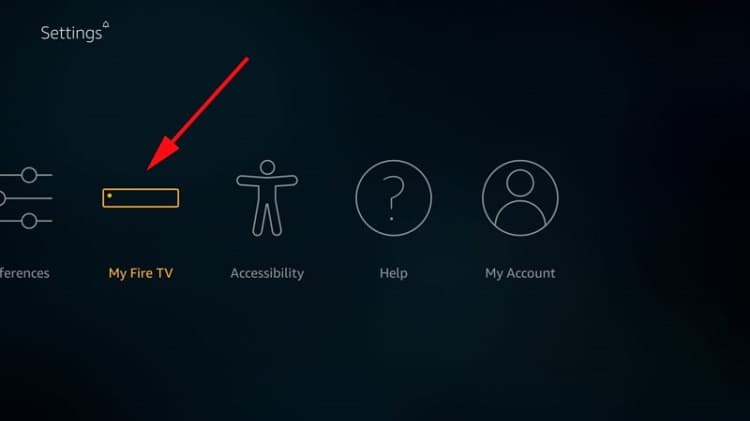
  1. While at the device Home screen, go to “Settings” then select “My Fire TV/ Device.”
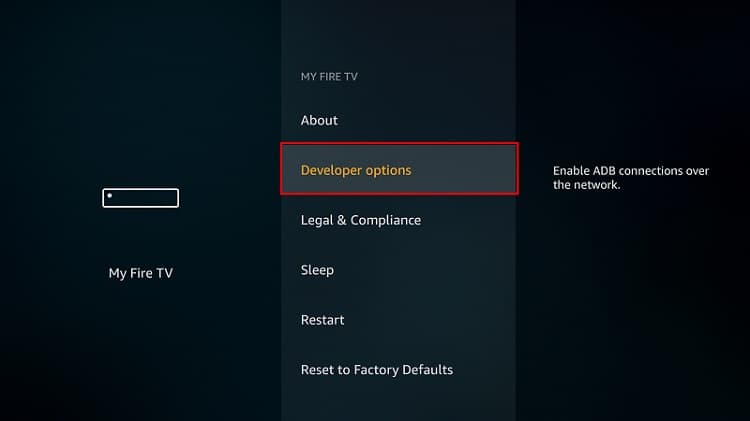
  2. Select “Developer options.”
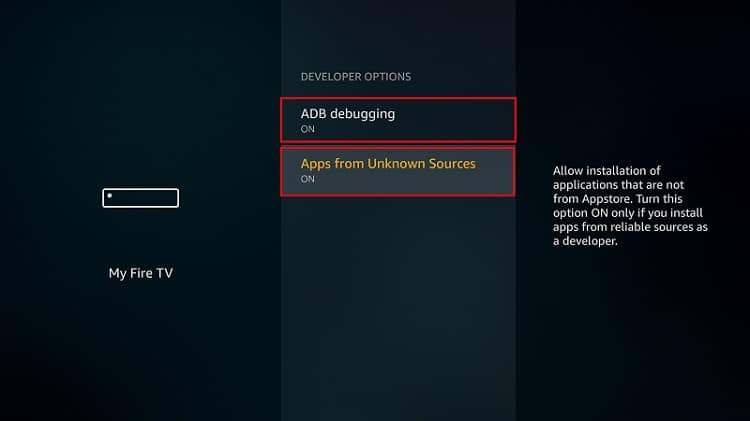
  3. Turn on “Apps from Unknown Sources” as well as “ADB debugging.”Enable install apps from unknown sources before installing Popcorn Time on your Firestick

After that, we can go ahead and download the app.

Firestick does not allow you to download files using a browser, so we’ll need an app for that purpose. The best app for downloading the apk file is a downloader, an app that is readily available in the store. If you already have it, you can skip to the next section.

If you haven’t installed it:

Installing the Downloader APP

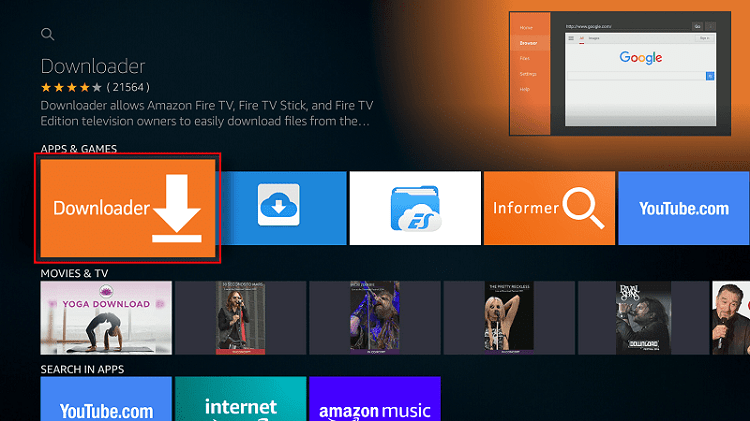
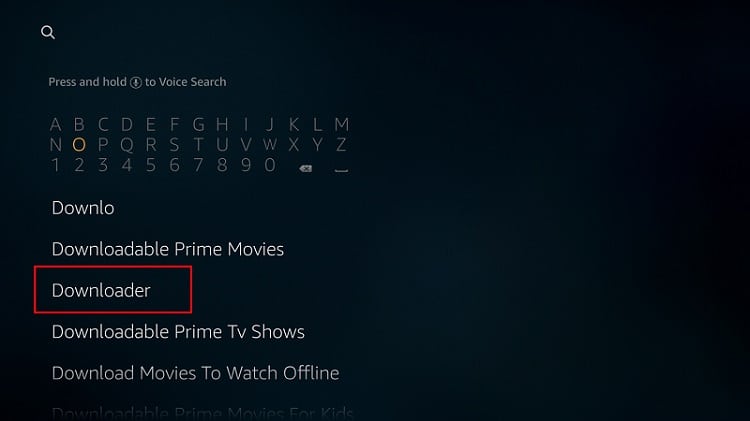
  1. On the main menu, go to the search option and type “Downloader”Download app is the best tool to install Popcorn Time on your Firestick
  2. Downloader should be the first suggestion. Select it.
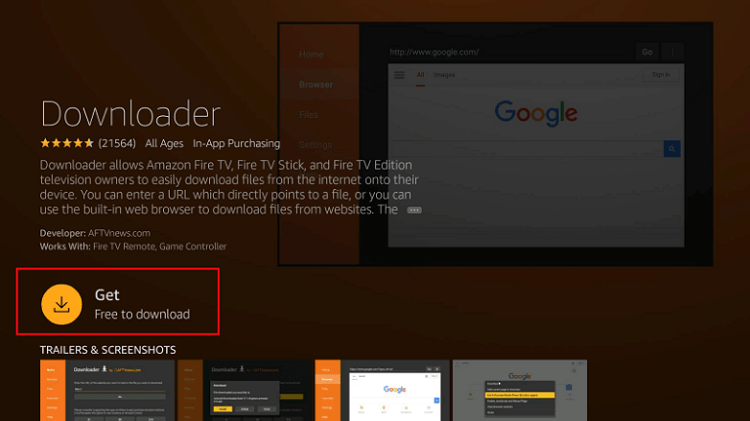
  3. Now click Get to install the app on your Firestick.
After the installation is complete, open the app.

Install Popcorn Time on Firestick

Now, we need to download the apk file to install Popcorn Time. There’s a TV version that has a customized interface, but we prefer the Android version. This version is also compatible with Firestick and Android TV, and it’s the one we recommend.

  1.   Firstly turn a Good VPN like IPVanish On, or the following steps may fail
  2. In the URL field of the downloader, enter the URL: https://popcorntime.app/
    On Downloader, enter the Popcorn Time APK url to install
  3. Find the APK for Android or Android TV and click on it to download
  4. Popcorn Time apk will start downloading.
  5. After the download is complete, click “Install”When Popcorn Time APK finishes the download hit Install to install the streaming app
  6. When the installation completes, click “Done.”Hit Done after the Popcorn Time app install
  7. Downloader will ask if you want to delete the apk. Select “Delete” to save some space.
  8. When asked to confirm, select “Delete” once more.After the Popcorn Time install you can delete its APK from your Firestick
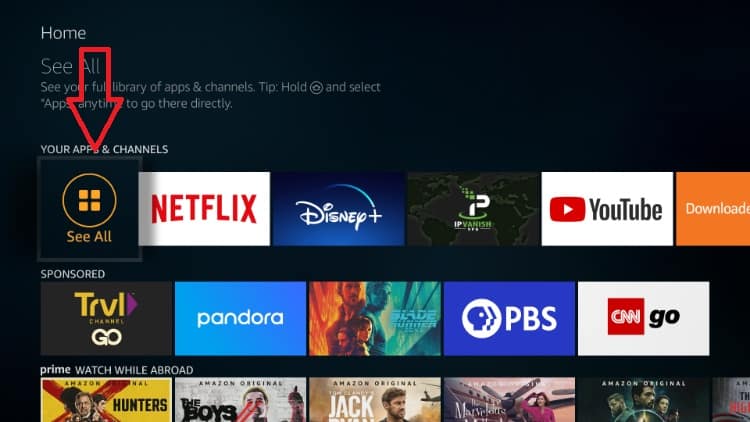
After the Popcorn Time install on your Firestick you'll find the streaming app on Your apps & channels menu

Popcorn Time should have been added to your app list. It can now be found under “See All” in Apps & Channels.

Sign up to our newsletter to receive guides and cord-cutting tips for free.

Remember that Popcorn Time is a third-party app that uses torrents to facilitate streams. Before you stream anything, make sure that you connect to an IPVanish server first.

If you haven’t created an account yet, here’s our exclusive 81% discount !

After getting an account, you can install the  IPVanish app by following these simple steps.

  • On the Firestick search box, type IPVanish.
  • The app will appear as the first suggestion. Click on it
  • You will be given the “Get” option. Hit it
  • The VPN will now start downloading
  • Launch it and sign in with your credentials.
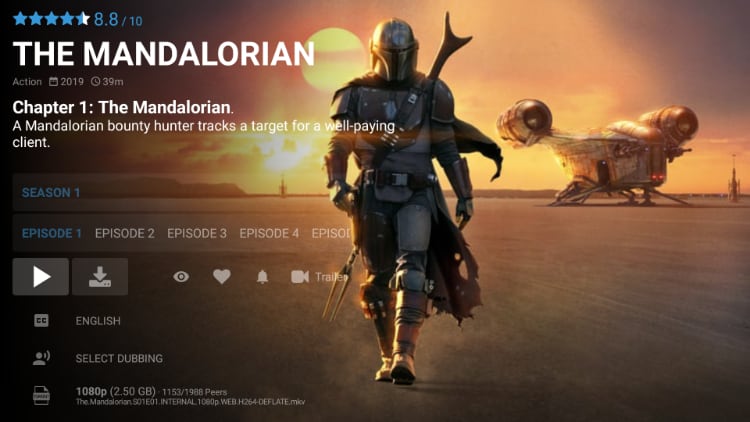
After the install on your Firestick, enjoy unlimited movies and TV Series available in Popcorn Time app

From there, you just need to connect your VPN and launch Popcorn Time. You can then select a title you’d like to watch.

You can choose the quality of the video and add subtitles if you desire.

Check out other streaming guides for Firestick!

Wrap up                                                                                             

Popcorn Time is one of the best streaming apps for Firestick, and you can install it using the guide above. You will then be able to stream in HD, without ads, and for free!

Warning:

However, always keep in mind that this is not an official app, and so be careful not to get in trouble with the authorities. Always ensure that you connect to an IPVanish server before you can start streaming on Popcorn Time or any other unofficial app.

We hope this guide on how to install Popcorn Time on Firestick was helpful. If so, rate it and share with your friends – It means so much to us!

See you later!
👋 Signup to our newsletter to receive guides and cord-cutting-tips tips for FREE!! Click Here!


Marketing permission: I give my consent to BestDroidPlayer to be in touch with me via email using the information I have provided in this form for the purpose of news, updates and marketing.

Legal disclaimer

BestDroidPlayer.com is in no way affiliated to any streaming application, apk or its addons. Also, we are not associated with the brands here shown as the references are only informative. Bestdroidplayer.com does not verify the legality or security of any apps, apks, addons or services mentioned on this site. We DO NOT HOST any copyright-protected software or streams and we DO NOT broadcast or provide any copyright-protected streams on this website - The content here provided is only informational and it should be used only to access content that is not protected by copyright. We strongly advise our readers to avoid piracy at all costs, if you decide to do so, it is your responsibility - We are not responsible for any of your activities.

If you wish to make a claim, please check our DMCA Notice Policy.

Affiliate disclosure: Bestdroidplayer.com is a reader-supported blog. If you buy a VPN or an Amazon product through our links, we may earn a commission that helps maintaining our blog. Our reviews are totally honest and we only recommend trusted VPN and ecommerce brands.

Filed Under: Firestick / Fire TV Tips, Guides and Tutorials, Streaming Apps Tagged With: Android Apps, Fire TV, Firestick, free streaming, install guide, movies, popcorn time, Streaming Apps, TV Shows

JT

Written by

Joel Timothy

Joel is a cybersecurity expert with 7+ years of experience and is dedicated to helping achieve a safer, more private digital space. He aims to empower individuals and organizations with the knowledge and tools needed to protect their online presence.

All guides by JoelLinkedIn

Related guides

  • Streaming Apps

    How to Install Popcorn Time on PC or Mac – HD movies and series for free

    17 January 2019

  • Streaming Apps

    How to Install Popcorn Time on Android TV Box

    11 December 2018

  • Kodi Addons Install Guides

    How to Install the Oath On Kodi Addon: Complete Installation Guide

    9 March 2021

  • Kodi Addons Install Guides

    Installation Guide for Death Streams Kodi Addon

    17 July 2018

  • Kodi Addons Install Guides

    Installation Guide of Simply Slim Kodi Build 18 Leia

    16 July 2018

  • Kodi Addons Install Guides

    Overwatch Kodi Addon Installation Guide

    4 July 2018

Reader Interactions

Leave a Reply

Your email address will not be published. Required fields are marked *

This site uses Akismet to reduce spam. Learn how your comment data is processed.

Primary Sidebar

Search

Follow us

  • Facebook
  • Pinterest
  • Twitter

Featured Posts

Kodi Setup Guide

Most Complete Kodi Setup Guide: All you need to know to use Kodi

Latest Articles

BestDroidplayer article image about VPN issues on Firestick with TV screen and remote.

VPN Not Working on Firestick? 8 Easy Ways to Fix It

4th November 2026 By bestdroidplayer

BestDroidplayer Free99 movie app interface screenshot.

How to Install Free99 Kodi Addon (2026 Guide)

3rd November 2026 By bestdroidplayer

AI video editing scene with 3D character on monitor for streaming.

How 3D Assets Can Improve AI Video and Streaming Content

3rd November 2026 By bestdroidplayer

Person holding smartphone with eSIM app in front of Rome skyline.

What to Compare Before Buying an eSIM Data Plan in Europe

23rd October 2026 By bestdroidplayer

bestdroidplayer

Tested guides for Kodi, Fire TV, Android TV and streaming apps, in English, Portuguese and French since 2014.

We host no files and are not affiliated with any app or addon we cover. Only stream content you have the rights to.

Menu

  • Homepage
  • About Us
  • All Posts
  • Bestdroidplayer FAQ
  • DMCA Notice Policy
  • Affiliate Disclosure
  • Disclaimer
  • Privacy Policy
  • Cookie Policy
  • Advertise with us – Banner Ads
  • Get in Touch
  • HTML Sitemap

About Us

Bestdroidplayer it’s a blog with News, Tips, and Tutorials about the streaming industry.
In this blog, you will find useful tips to cut the cord and save some bucks while you get the best streaming experience.

Read more about us here.

Legal Disclaimer

BestDroidPlayer.com is in no way affiliated to any streaming application, apk or its addons. Also,  we are not associated with the brands here shown as the references are only informative. Bestdroidplayer.com does not verify the legality or security of any apps, apks, addons or services mentioned on this site. We DO NOT HOST any copyright-protected software or streams and we DO NOT broadcast or provide any copyright-protected streams on this website – The content here provided is only informational. We strongly advise our readers to avoid piracy at all costs, if you decide to do so, it is your responsability – We are not responsible for any of your activities.

Copyright © 2026 Bestdroidplayer

EnglishPortuguêsFrançais

We value your privacy

We use cookies for statistics (Google Analytics) to see which guides help our readers. You can accept or refuse: the site works the same either way. Cookie policy