• Skip to main navigation
  • Skip to main content
  • Skip to primary sidebar
  • Skip to footer
bestdroidplayer
  • Free Guides
  • Free Tools
    • Streaming Bitrate Calculator
  • Kodi
    • Kodi Guide
    • Best Kodi Addons
    • Best Sports Kodi Addons
      • Best Football (Soccer) Kodi Addons
      • Best NFL Kodi Addons
      • Best Cricket Kodi Addons
      • Best UFC / MMA Kodi Addons
      • Best WWE Kodi Addons
    • Best Movie Kodi Addons
    • Best Live TV Addons
    • Addons List
      • Live Sports Addons
        • Install TvTap Addon
        • Install Sportowa TV Addon
        • Install Rising Tides Addon
        • Install SportHD Addon
        • Install Fight Club Addon
      • Movies & TV Shows
        • Install Exodus Redux Addon
        • Install Magic Dragon Addon
        • Install Covenant Addon
        • Install Tempest Addon
        • Install TAZ Addon
        • Install Seren Addon
        • Install The Promise Addon
        • Install EnterTain Me Addon
        • Install The Crew Addon
        • Install Nightwing Addon
        • Install Black Lightning Addon
        • Install Shadow Addon
        • Install Asgard Addon
      • Live TV Addons
        • Install TvTap/TapTv Addon
        • Install LiveNet TV Addon
        • Install The Crew Addon
        • Install USGoTv Addon
        • Install Asgard Addon
        • Install RBTv Addon
        • Install Centry Sports Addon
    • Fix Kodi Errors
    • More Kodi Articles
  • Stremio
    • Stremio Beginner Guide
    • How to Install Stremio on FireStick
    • How to Install Stremio on Android TV Box
    • How to Install Stremio Addons
    • Best Stremio Addons
  • Plex
    • Plex Channels (Overall)
    • Plex Channels for Movies
    • Plex Channels for Sports
    • Plex Channels for Kids
  • Fire TV Stick
    • How to Set Up Amazon Fire Stick
    • How to Jailbreak Amazon Firestick
    • Best Apps for Jailbroken Firestick
    • How to Get Local Channels on Firestick
    • Best IPTV Players for Firestick
    • Install Kodi on Fire TV Stick
    • Update Kodi on Fire TV Stick
    • Install a VPN on Fire TV Stick
    • Best Free VPN for Firestick & Fire TV
    • More Firestick Articles
  • VPN
    • Best VPN for Kodi
    • Free VPN for Android TV Box
    • Free VPN for Firestick & Fire TV
    • What you can do with a VPN
  • EN
  • PT
  • FR
  • EN
  • PT
  • FR
  1. Home
  2. Kodi News, Tips, Tutorials and Guides
  3. Kodi Addons Install Guides
  4. How to Install The Lab Kodi Addon (All-In-One)

How to Install The Lab Kodi Addon (All-In-One)

JT

Last updated 6 May 2024 by Joel Timothy

Install The Lab Kodi Addon

Bestdroidplayer.com is a reader-supported blog. If you buy a VPN or an Amazon product through our links, we may earn a commission that helps maintaining our blog. Our reviews are totally honest and we only recommend trusted VPN and ecommerce brands. Full affiliate disclosure

Contents hide
1. Is The Lab Kodi Addon Safe?
2. Is The Lab Kodi Addon Legal?
3. How to Install The Lab Kodi Addon
4. Wrap Up

This guide will give you step-by-step instructions on how to install The Lab Kodi Addon. The guide is applicable to all devices that support Kodi. Including Firestick, Android TV Box, Google TV devices, Nvidia Shield, Windows and macOS.

The Lab is a relatively new Kodi addon from The Lab repository. The repo is the new version of the now-defunct The WareHouse repo, and it’s also developed by Tech E Coyote. It also hosts other popular Kodi addons such as Dynasty, Adina, Tap TV, LNTV, Swift TV, and RBTv.

The Lab Kodi addon is an all-in-one addon. It provides access to Movies, TV Shows, Live TV, Documentaries, Cartoons and StandUp Comedy. The addon provides both free and debrid content, with lots of 1-click titles. One of its strengths is that it incorporates other Kodi addons such as NightWing, Tap TV, LNTV, Swift TV, and RBTv.

Is The Lab Kodi Addon Safe?

Third-party Kodi addons are usually created by independent developers and hosted on unofficial sites. This means that some pose a threat of malware, so it’s always good to verify that they are safe. We did that for The Lab Kodi addon using VirusTotal.

Checking for malware on The Lab Repo

As you can see from above, both the repository and addon are safe and free from malware.

Is The Lab Kodi Addon Legal?

Since The Lab is a third-party addon, you need to be careful before streaming anything. This is because most unofficial Kodi addons provide links to content that can be considered illegal. The addons themselves do not host the content. So they can absolve themselves from the blame, but you will have broken the law if you access pirated content through them.

For this reason, we usually advise all Kodi users to protect themselves when using third-party Kodi addons. The best way to do this is by connecting to a VPN. The VPN will encrypt your traffic to ensure your ISP can’t know what you are accessing. It will also hide your IP address from copyright trolls and untrustworthy sites. However, you also have to ensure that the VPN you choose is reliable and good enough for streaming.

The Best VPN for Streaming

The best VPN for streaming at the moment is IPVanish, and it’s the VPN we recommend. The VPN ticks all crucial boxes, and below is a highlight of its features:

  • ⚡ Superb Speeds: Guarantees a smooth live streaming experience.
  • 🌍 Huge Server Network: You can connect to a nearby server for a fast and stable connection.
  • 🔑Unblock Anything: Safe access to censored apps, websites and torrent sites.
  • 😎 Best in Privacy: The VPN doesn’t keep any activity logs, and so your activities are only known to you.
  • 🔐 Top-notch Security: This VPN uses AES 256-bit encryption and provides multiple protocols alongside other security features such as a kill switch, DNS & IPv6 protection and WireGuard.
  • 💳 30 Days RISK FREE Money-Back Guarantee: In case you do not like the service, you can get every penny back if you cancel within 30 days!

You can get IPVanish at 81% off using our exclusive discount below!

How to Install The Lab Kodi Addon

To install The Lab Kodi addon, we are going to split the process into four steps.

Step 1: Enable “Unknown Sources”

As it’s a third-party Kodi addon, we’ll first need to enable installation from “unknown sources.”

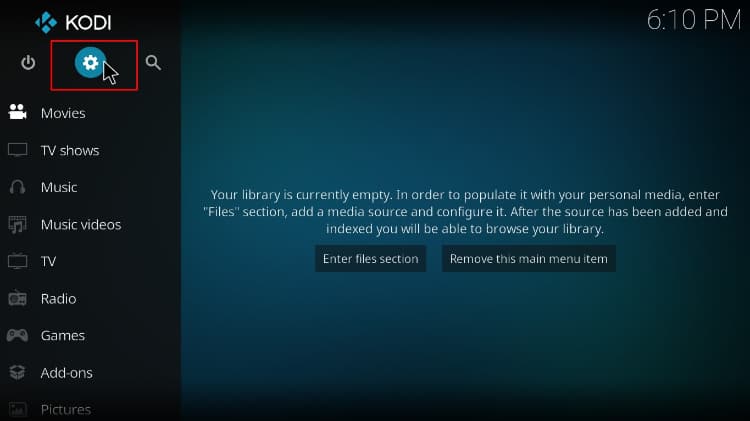
  1. Open the Kodi app and go to Settings.
    Select Settings button on Kodi
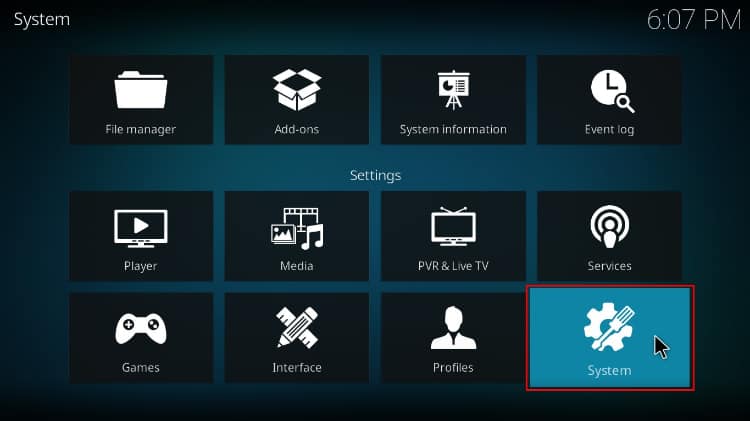
  2. Select System on the next page.
    Select to access Kodi system
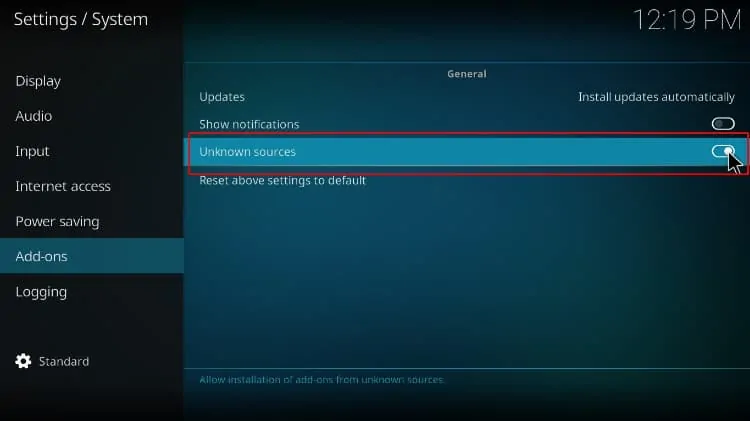
  3. Hover over Addons and enable Unknown Sources. Click “Yes” when prompted for confirmation.
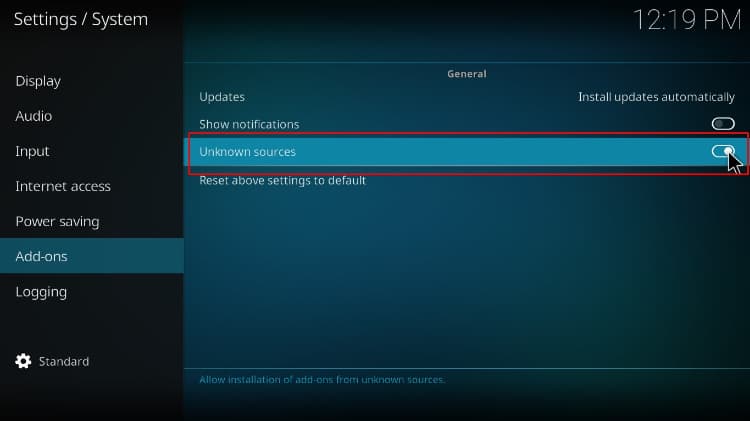
    Activate Unknown sources on Kodi

Unless you reset it, Kodi can now install third-party Kodi addons and builds.

Step 2: Add The Lab Repo Source

To install The Lab repo, we’ll first need to add its hosting URL. But before that, we advise that you turn on IPVanish to avoid any copyright and ISP blocking issues.

Sign up to our newsletter to receive guides and cord-cutting tips for free.
  1. From there, head back to Settings, then select File Manager.
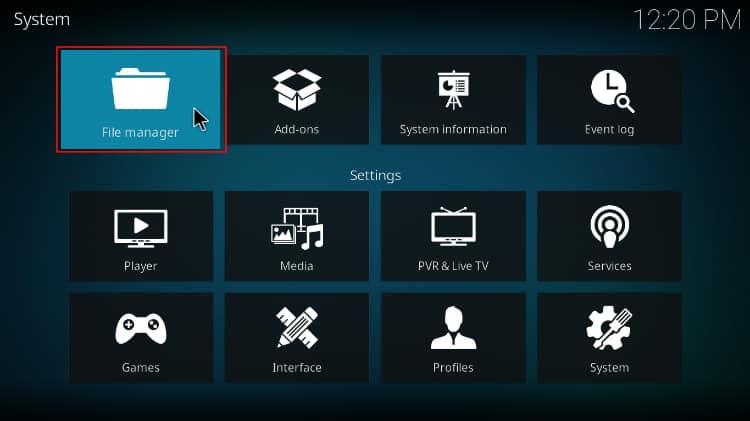
    Select File manager to access sources on Kodi
  2. Double-click Add-Source and type in the URL https://th3l48.github.io/TheLab/ into the window that opens. This will insert “The Lab” in the textbox below, and you can click “OK.”
    The Lab Repo Source

Step 3: Install The Lab Kodi Addon Repo

We can now install The Lab repository.

  1. Head back to the main page and click on Add-ons from the left-hand side menu.
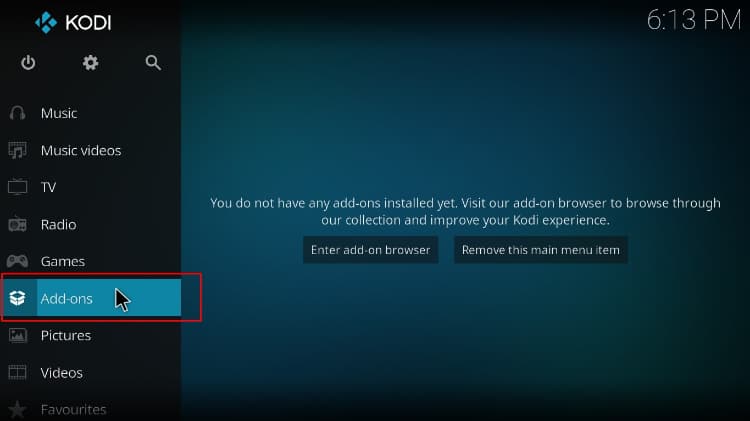
    Select Add-ons from the left menu on Kodi homepage
  2. Now, click the open box icon on the top left side of the screen.
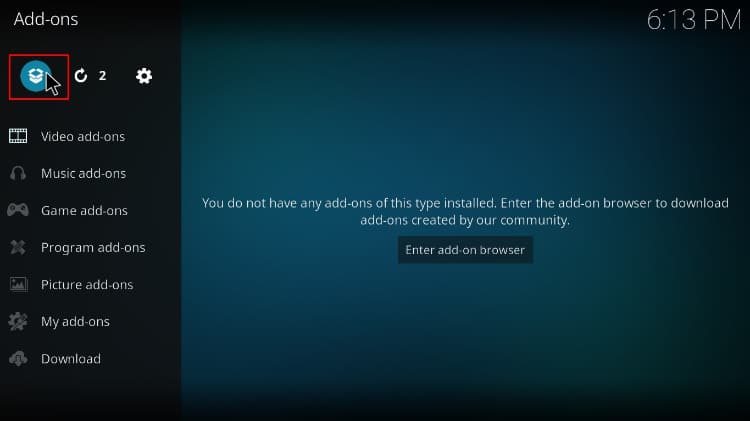
    Select the package installer button on Kodi
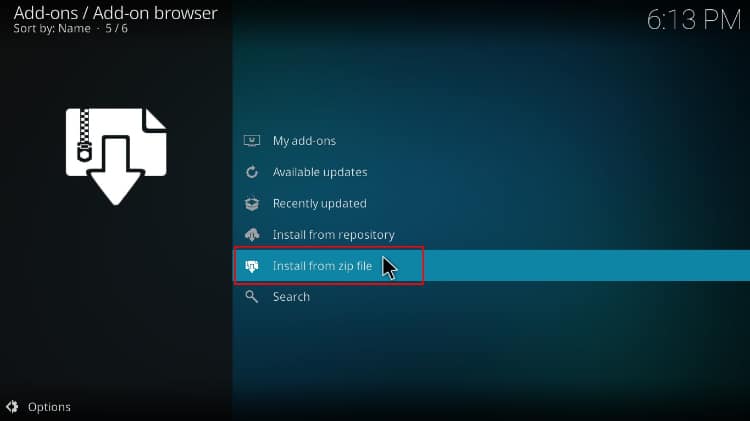
  3. Select “Install from Zip File.”
    Select install from zip file on Kodi
  4. Select “The Lab.”
    The Lab Repo Source Location
  5. Click on repository.thelab-x.x.x.zip (where x represents the version number).
    The Lab repository zip file
  6. You will receive a Kodi notification when the repo installs successfully.
    The Lab repo installed notification

Step 4: Install The Lab Kodi Addon

We can now install The Lab Kodi addon.

  1. While on the same page, click “Install from repository.”
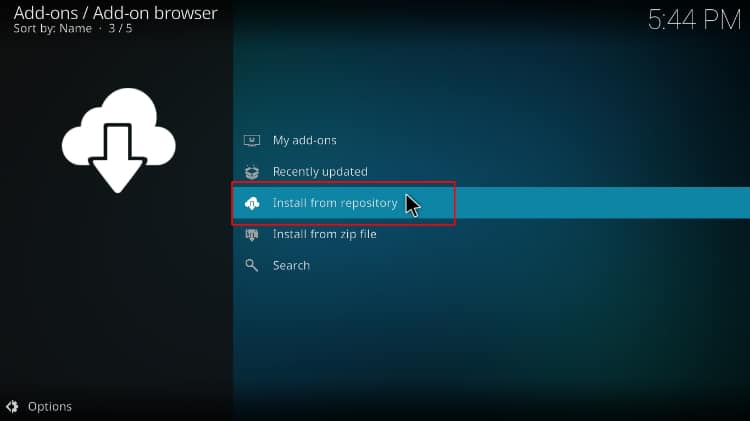
    install from repository
  2. Select “The Lab Repo”
    The Lab repository on Kodi
  3. Select “Video Add-ons” and then click on “The Lab.”
    The Lab Kodi Addon
  4. You will now get an “Install” option. Hit it.
    Install The Lab Kodi Addon
  5. The addon will let you know the dependencies that will also be installed. Click “OK” to grant permission.
  6. The addon will then install, and you’ll get a Kodi notification.
    Install The Lab Kodi Addon Successful Notification

Here’s what the addon’s main page looks like.

The Lab Kodi Addon Menu

The addon comes with lots of sub-categories to make selection easy.

The Lab Kodi Addon Movies

It also offers a collection of other Kodi addons under “IPTV & Sports.”

The Lab Kodi Addon Live TV Section

Check out more Kodi addon installation guides.

Wrap Up

The Lab Kodi addon is a fantastic Kodi addon that provides a wide variety of content, including movies, TV shows, live TV, and documentaries. The addon allows you to watch both free and Real-Debrid content, and it’s worth checking out. However, keep in mind that the links you’ll get through the addon are not official, so ensure that you protect yourself using a reliable VPN such as IPVanish.

Enjoy!

👋 Signup to our newsletter to receive guides and cord-cutting-tips tips for FREE!! Click Here!


Marketing permission: I give my consent to BestDroidPlayer to be in touch with me via email using the information I have provided in this form for the purpose of news, updates and marketing.

Legal disclaimer

BestDroidPlayer.com is in no way affiliated to any streaming application, apk or its addons. Also, we are not associated with the brands here shown as the references are only informative. Bestdroidplayer.com does not verify the legality or security of any apps, apks, addons or services mentioned on this site. We DO NOT HOST any copyright-protected software or streams and we DO NOT broadcast or provide any copyright-protected streams on this website - The content here provided is only informational and it should be used only to access content that is not protected by copyright. We strongly advise our readers to avoid piracy at all costs, if you decide to do so, it is your responsibility - We are not responsible for any of your activities.

If you wish to make a claim, please check our DMCA Notice Policy.

Affiliate disclosure: Bestdroidplayer.com is a reader-supported blog. If you buy a VPN or an Amazon product through our links, we may earn a commission that helps maintaining our blog. Our reviews are totally honest and we only recommend trusted VPN and ecommerce brands.

Filed Under: Kodi Addons Install Guides, Kodi News, Tips, Tutorials and Guides Tagged With: install guide, kodi, Kodi Addon install guide, Kodi addons, The Lab Kodi Addon

JT

Written by

Joel Timothy

Joel is a cybersecurity expert with 7+ years of experience and is dedicated to helping achieve a safer, more private digital space. He aims to empower individuals and organizations with the knowledge and tools needed to protect their online presence.

All guides by JoelLinkedIn

Related guides

  • Kodi Addons Install Guides

    How to Install No One Kodi Addon: All-In-One Kodi Addon

    17 August 2022

  • Kodi Addons Install Guides

    How to Install Twisted Kodi Addon: A free All-In-One Kodi Addon

    31 July 2022

  • Kodi Addons Install Guides

    How to Install Fido K19 Kodi Addon: All-in-One Addon of quality

    17 October 2022

  • Kodi Addons Install Guides

    How to Install Loonatics Empire Kodi Addon: An All-in-One Addon

    10 August 2022

  • Kodi Addons Install Guides

    How to Install The Crew Kodi Addon: All-In-One Addon for High-Quality Streaming

    25 August 2019

  • Kodi Addons Install Guides

    How to Install Sportie Addon on Kodi – All sports in one Addon

    11 March 2018

Reader Interactions

Leave a Reply

Your email address will not be published. Required fields are marked *

This site uses Akismet to reduce spam. Learn how your comment data is processed.

Primary Sidebar

Search

Follow us

  • Facebook
  • Pinterest
  • Twitter

Featured Posts

Kodi Setup Guide

Most Complete Kodi Setup Guide: All you need to know to use Kodi

Latest Articles

BestDroidplayer article image about VPN issues on Firestick with TV screen and remote.

VPN Not Working on Firestick? 8 Easy Ways to Fix It

4th November 2026 By bestdroidplayer

BestDroidplayer Free99 movie app interface screenshot.

How to Install Free99 Kodi Addon (2026 Guide)

3rd November 2026 By bestdroidplayer

AI video editing scene with 3D character on monitor for streaming.

How 3D Assets Can Improve AI Video and Streaming Content

3rd November 2026 By bestdroidplayer

Person holding smartphone with eSIM app in front of Rome skyline.

What to Compare Before Buying an eSIM Data Plan in Europe

23rd October 2026 By bestdroidplayer

bestdroidplayer

Tested guides for Kodi, Fire TV, Android TV and streaming apps, in English, Portuguese and French since 2014.

We host no files and are not affiliated with any app or addon we cover. Only stream content you have the rights to.

Menu

  • Homepage
  • About Us
  • All Posts
  • Bestdroidplayer FAQ
  • DMCA Notice Policy
  • Affiliate Disclosure
  • Disclaimer
  • Privacy Policy
  • Cookie Policy
  • Advertise with us – Banner Ads
  • Get in Touch
  • HTML Sitemap

About Us

Bestdroidplayer it’s a blog with News, Tips, and Tutorials about the streaming industry.
In this blog, you will find useful tips to cut the cord and save some bucks while you get the best streaming experience.

Read more about us here.

Legal Disclaimer

BestDroidPlayer.com is in no way affiliated to any streaming application, apk or its addons. Also,  we are not associated with the brands here shown as the references are only informative. Bestdroidplayer.com does not verify the legality or security of any apps, apks, addons or services mentioned on this site. We DO NOT HOST any copyright-protected software or streams and we DO NOT broadcast or provide any copyright-protected streams on this website – The content here provided is only informational. We strongly advise our readers to avoid piracy at all costs, if you decide to do so, it is your responsability – We are not responsible for any of your activities.

Copyright © 2026 Bestdroidplayer

EnglishPortuguêsFrançais

We value your privacy

We use cookies for statistics (Google Analytics) to see which guides help our readers. You can accept or refuse: the site works the same either way. Cookie policy