• Skip to main navigation
  • Skip to main content
  • Skip to primary sidebar
  • Skip to footer
bestdroidplayer
  • Free Guides
  • Free Tools
    • Streaming Bitrate Calculator
  • Kodi
    • Kodi Guide
    • Best Kodi Addons
    • Best Sports Kodi Addons
      • Best Football (Soccer) Kodi Addons
      • Best NFL Kodi Addons
      • Best Cricket Kodi Addons
      • Best UFC / MMA Kodi Addons
      • Best WWE Kodi Addons
    • Best Movie Kodi Addons
    • Best Live TV Addons
    • Addons List
      • Live Sports Addons
        • Install TvTap Addon
        • Install Sportowa TV Addon
        • Install Rising Tides Addon
        • Install SportHD Addon
        • Install Fight Club Addon
      • Movies & TV Shows
        • Install Exodus Redux Addon
        • Install Magic Dragon Addon
        • Install Covenant Addon
        • Install Tempest Addon
        • Install TAZ Addon
        • Install Seren Addon
        • Install The Promise Addon
        • Install EnterTain Me Addon
        • Install The Crew Addon
        • Install Nightwing Addon
        • Install Black Lightning Addon
        • Install Shadow Addon
        • Install Asgard Addon
      • Live TV Addons
        • Install TvTap/TapTv Addon
        • Install LiveNet TV Addon
        • Install The Crew Addon
        • Install USGoTv Addon
        • Install Asgard Addon
        • Install RBTv Addon
        • Install Centry Sports Addon
    • Fix Kodi Errors
    • More Kodi Articles
  • Stremio
    • Stremio Beginner Guide
    • How to Install Stremio on FireStick
    • How to Install Stremio on Android TV Box
    • How to Install Stremio Addons
    • Best Stremio Addons
  • Plex
    • Plex Channels (Overall)
    • Plex Channels for Movies
    • Plex Channels for Sports
    • Plex Channels for Kids
  • Fire TV Stick
    • How to Set Up Amazon Fire Stick
    • How to Jailbreak Amazon Firestick
    • Best Apps for Jailbroken Firestick
    • How to Get Local Channels on Firestick
    • Best IPTV Players for Firestick
    • Install Kodi on Fire TV Stick
    • Update Kodi on Fire TV Stick
    • Install a VPN on Fire TV Stick
    • Best Free VPN for Firestick & Fire TV
    • More Firestick Articles
  • VPN
    • Best VPN for Kodi
    • Free VPN for Android TV Box
    • Free VPN for Firestick & Fire TV
    • What you can do with a VPN
  • EN
  • PT
  • FR
  • EN
  • PT
  • FR
  1. Home
  2. Kodi News, Tips, Tutorials and Guides
  3. Kodi Addons Install Guides
  4. How to Install DeathStar Kodi Addon for an all-in-one streaming

How to Install DeathStar Kodi Addon for an all-in-one streaming

J

Last updated 23 September 2019 by Justin 2 comments

DeathStar is an amazing All-In-One third-party Kodi Addon. Involving various developers, this is a good example of the Kodi Community dynamics. Keep reading this tutorial and, in the end, you’ll have learned How to Install DeathStar Kodi Addon…
How to Install DeathStar Kodi Addon for an all-in-one streaming

Bestdroidplayer.com is a reader-supported blog. If you buy a VPN or an Amazon product through our links, we may earn a commission that helps maintaining our blog. Our reviews are totally honest and we only recommend trusted VPN and ecommerce brands. Full affiliate disclosure

DeathStar is a one of a kind Kodi addon, and one of the best working Kodi addons. The addon is a result of collaboration between various developers to come up with an all-inclusive Kodi addon. DeathStar brings you content from developers such as DNA, UKODI1 (WOW), ONE NATION, EXPOSE, and EzZeRmAn. The addon continues to invite more developers through its “Latest News and Updates” section, and so we are expecting it only to get better. In this guide, we’ll show you how to install DeathStar Kodi addon.

How to Install DeathStar Kodi Addon

To make it easier for you, we have divided the process into sub-parts and added screenshots. DeathStar Kodi addon is hosted by the Ezzer Repo, a third-party repository. This means that you first need to allow your Kodi to run “apps from unknown sources” but, first…

Turn your VPN On

Whenever want to stream anything using a third-party Kodi addon like DeathStar, always make sure that you use a Good VPN. This is because your ISP and government are always monitoring your online activities. They can see every website you access, including even the time and exact location.

Since third-party Kodi addons scrape for content from other websites, they don’t own the content you get from them. Most of their free content is therefore pirated, and its consumption can make you get a DMCA notice or even face further penalties. It’s for this reason that we always advise you to use a VPN with Kodi.
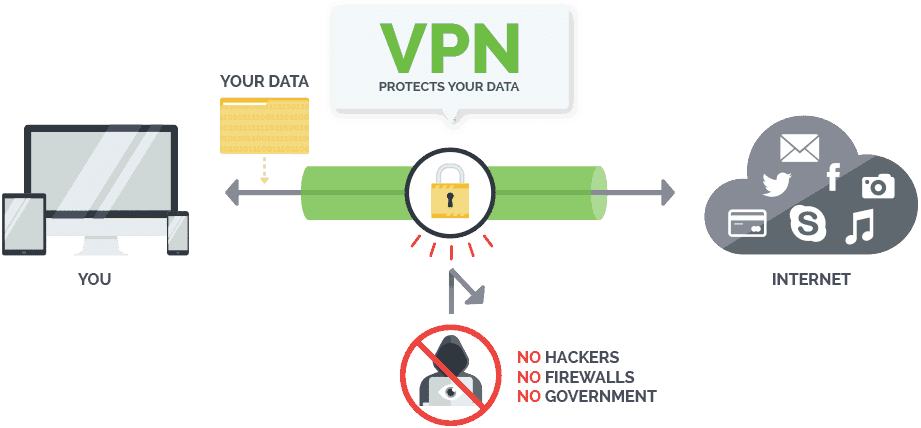
This is how a VPN worksThe best VPN for streaming at the moment is IPVanish. It will secure all your activities to ensure that your government, ISP, or any other third-party can’t get access. The VPN will also let you stream in HD thanks to its superb speeds.
Luckily for you, we have managed to get an incredible 81% discount on IPVanish. Save on the best VPN for Kodi using the link below.

Save 81% of IPVanish now!

Enabling Unknown sources

Because DeathStar is a third-party Addon, you also need to give permission to Kodi to access external sources.

You can do this by going to Addons> Settings> Enable Unknown Sources

Sign up to our newsletter to receive guides and cord-cutting tips for free.

Adding Ezzer Repo Source

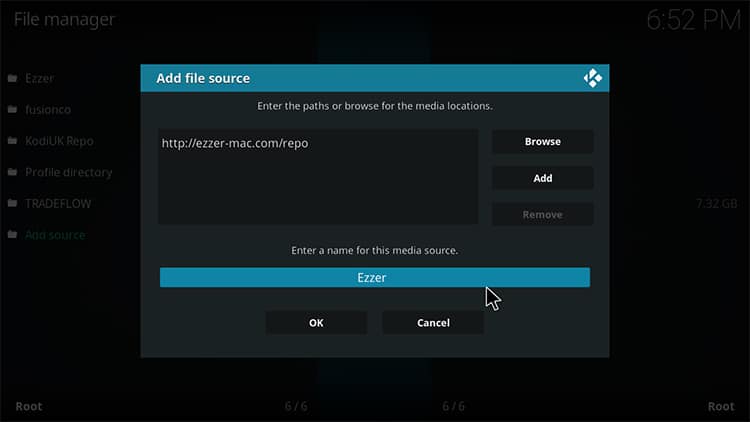
  • At the Kodi home screen, click the Settings button on the top left side to open the System
  • Select File Manager, and then double-click “Add-Source”
  • Type the URL http://ezzer-mac.com/repo into the window that opens.
  • Below that, name it as “Ezzer” You can then click “OK”.Ezzer Repo is the right source to install the Death Star Kodi Addon

Installing the Ezzer Repository

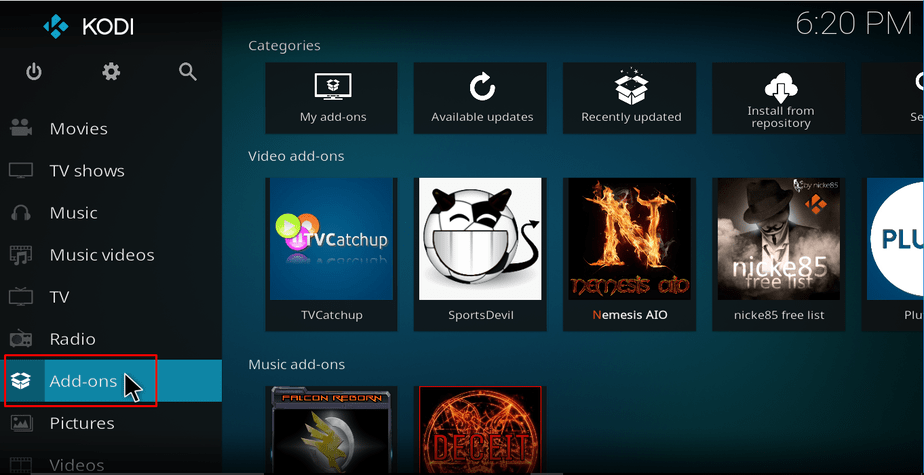
  • At the Kodi Home screen, click “Add-ons” from the left side menu.
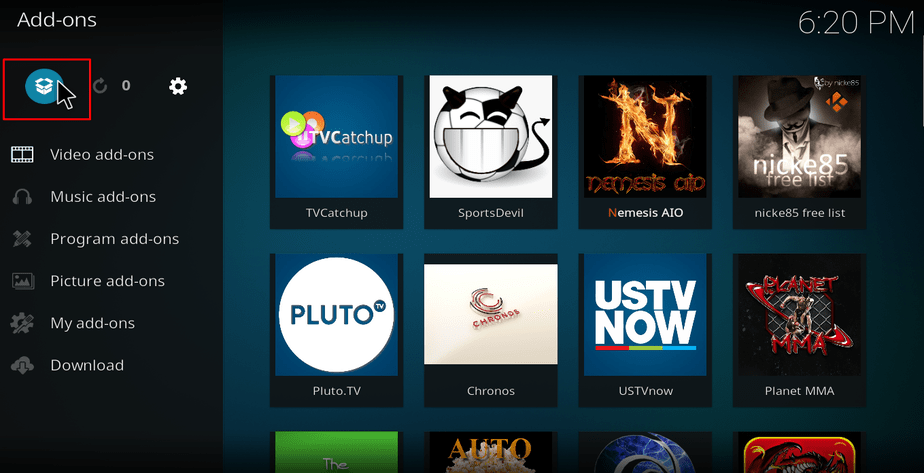
  • Open the package installer by clicking the open box icon at the top of the menu bar.
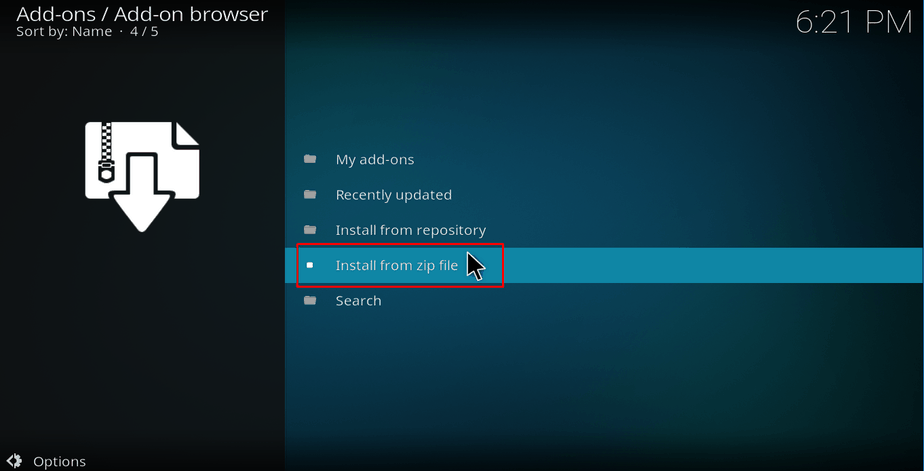
  • Select “Install from Zip File”
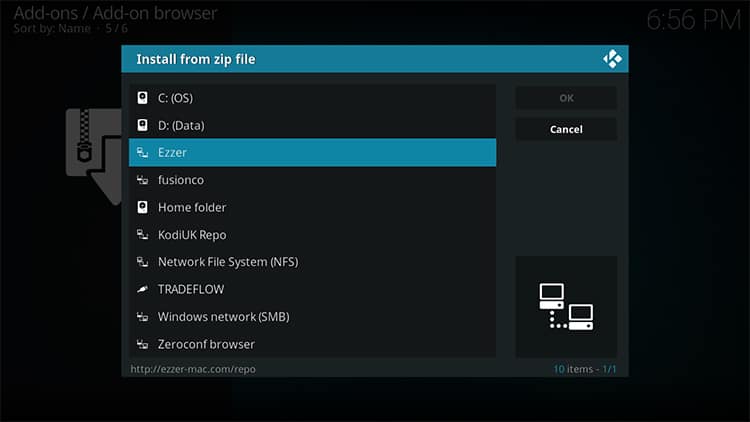
  • Select the repo you just added above. It will be displayed as “Ezzer”Select the Ezzer repo name
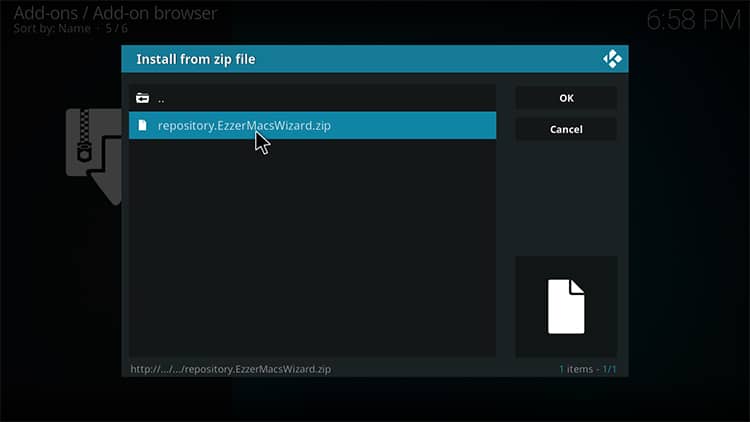
  • Select repository.EzzerMacsWizard.zipSelect the ezzer's repo zip file to install Death Star Kodi Addon
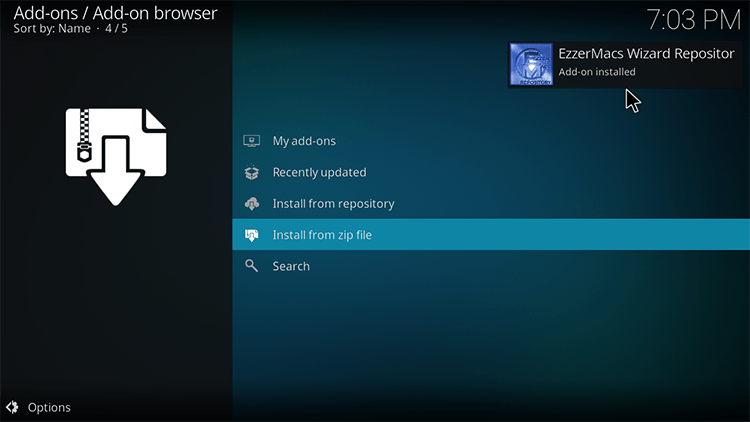
  • One Ezzer Repo should now install. Wait for the installation to complete. You will then receive a notification.The Ezzer's repo file was installed successfuly

Installing DeathStar Kodi Addon

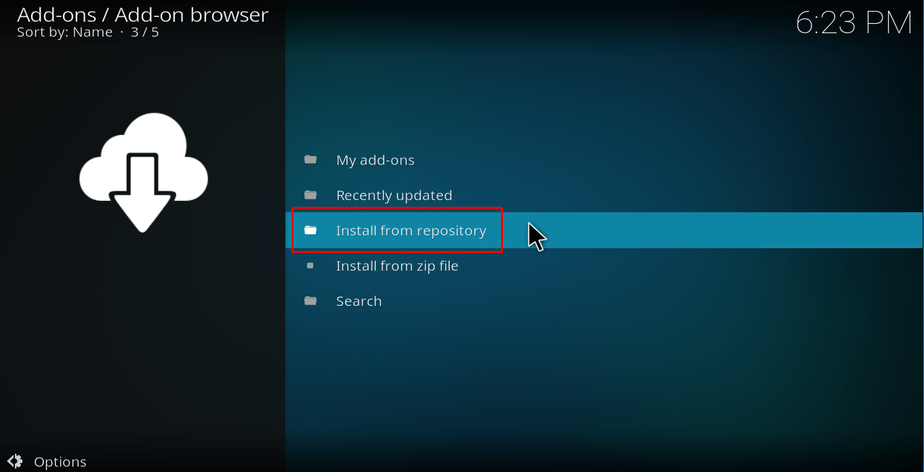
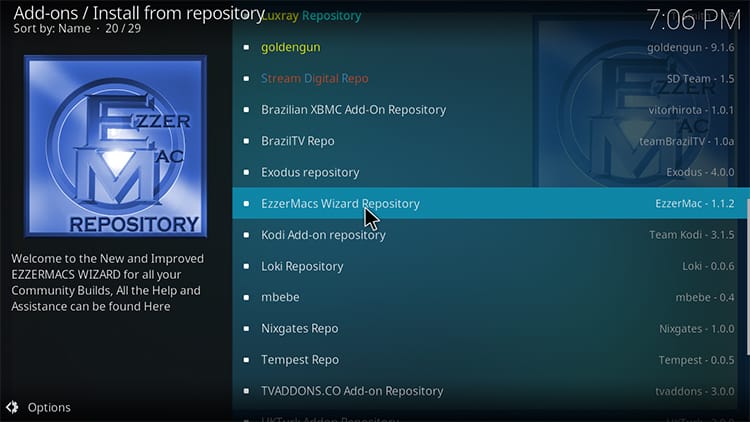
  • Now, on the same screen, click “Install from the repository ”
  • Select “EzzerMacsWizard Repository”Select Ezzer Repository to install Death Star Kodi Addon
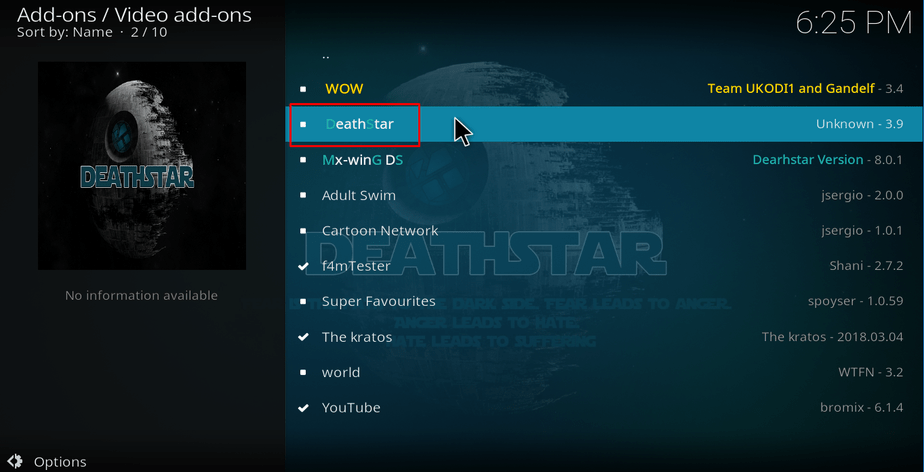
  • Select “Video Add-ons” and then scroll down to DeathStar and then click it.
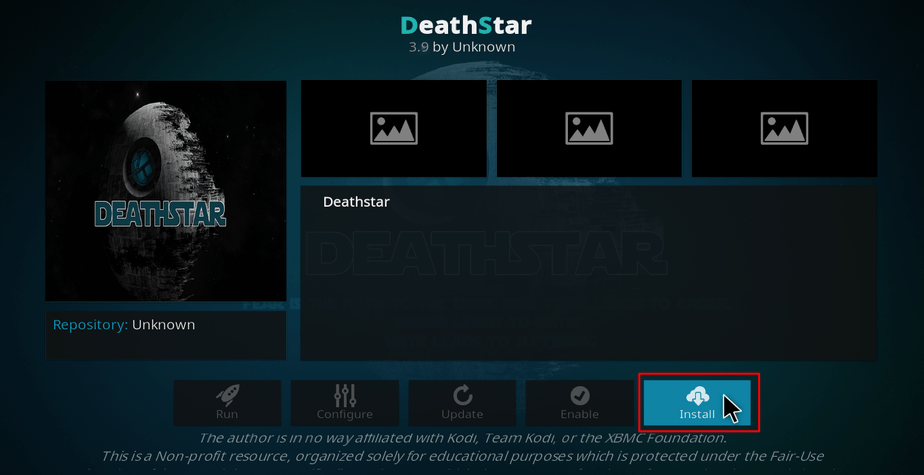
  • You will now get an “Install” option. Hit it.
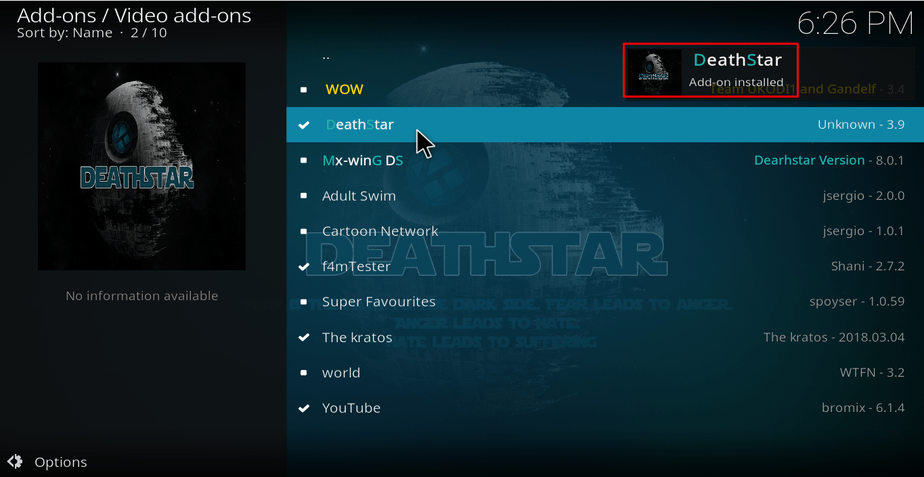
  • The DeathStar Kodi Addon will now install. You will get a notification when it’s ready to use.DeathStar

You can now go to your home screen and select DeathStar from your list of Kodi addons. The wide array of content provided by DeathStar will now be available.

Wrap up

In this tutorial you’ve learned How to Install DeathStar Kodi Addon, for an amazing All-in-one streaming. Due to being a third-party addon you needed to give Kodi to access to external unknown sources. Also, we recommended you to turn your VPN on, prior to installing the addon. So, just remember to turn on a reliable VPN like IPVanish before you stream anything on DeathStar Kodi addon or any other third-party addon, and you’ll be done! If you are insecure about which to choose, a visit to our Best VPN services review may help!

We hope this article on How to Install DeathStar Kodi Addon, have been useful. If so, please share it with your friends.

Have a nice day!

👋 Signup to our newsletter to receive guides and cord-cutting-tips tips for FREE!! Click Here!


Marketing permission: I give my consent to BestDroidPlayer to be in touch with me via email using the information I have provided in this form for the purpose of news, updates and marketing.

Legal disclaimer

BestDroidPlayer.com is in no way affiliated to any streaming application, apk or its addons. Also, we are not associated with the brands here shown as the references are only informative. Bestdroidplayer.com does not verify the legality or security of any apps, apks, addons or services mentioned on this site. We DO NOT HOST any copyright-protected software or streams and we DO NOT broadcast or provide any copyright-protected streams on this website - The content here provided is only informational and it should be used only to access content that is not protected by copyright. We strongly advise our readers to avoid piracy at all costs, if you decide to do so, it is your responsibility - We are not responsible for any of your activities.

If you wish to make a claim, please check our DMCA Notice Policy.

Affiliate disclosure: Bestdroidplayer.com is a reader-supported blog. If you buy a VPN or an Amazon product through our links, we may earn a commission that helps maintaining our blog. Our reviews are totally honest and we only recommend trusted VPN and ecommerce brands.

Filed Under: Kodi Addons Install Guides Tagged With: all-in-one, DeathStar Kodi Addon, kodi, Kodi addon

Related guides

  • Kodi Addons Install Guides

    How to Install No One Kodi Addon: All-In-One Kodi Addon

    17 August 2022

  • Kodi Addons Install Guides

    How to Install The Crew Kodi Addon: All-In-One Addon for High-Quality Streaming

    25 August 2019

  • Kodi Addons Install Guides

    How to Install Gen X Kodi Addon: All-in-One for free streaming

    18 October 2022

  • Kodi Addons Install Guides

    How to Install BK Nox Kodi Build: A Fantastic All-in-One Build for streaming

    20 March 2020

  • Kodi Addons Install Guides

    How to Install Twisted Kodi Addon: A free All-In-One Kodi Addon

    31 July 2022

  • Kodi Addons Install Guides

    How to Install Fido K19 Kodi Addon: All-in-One Addon of quality

    17 October 2022

Reader Interactions

Comments

  1. BestdroidplayerPT says

    17th March 2019 at 11:51 am

    Please be sure to:
    – Enable unknown sources, at Addons> Settings> Enable Unknown Sources
    – Turn your VPN on. If you don’t have one yet subscribe one from the List of Best VPNs
    – Write exactly the repo source url:http://uk1.site/Repo as it is case sensitive
    Hope this help you :)

  2. Lgartner says

    8th March 2019 at 7:36 am

    I’m trying to install death star on my android box have never had issues downloading addons before now. For some reason I can’t get past the download from zip file part I’ve tried clicking on the title UKodi1 but nothing happens should i try the process over again?

Leave a Reply

Your email address will not be published. Required fields are marked *

This site uses Akismet to reduce spam. Learn how your comment data is processed.

Primary Sidebar

Search

Follow us

  • Facebook
  • Pinterest
  • Twitter

Featured Posts

Kodi Setup Guide

Most Complete Kodi Setup Guide: All you need to know to use Kodi

Latest Articles

BestDroidplayer article image about VPN issues on Firestick with TV screen and remote.

VPN Not Working on Firestick? 8 Easy Ways to Fix It

4th November 2026 By bestdroidplayer

BestDroidplayer Free99 movie app interface screenshot.

How to Install Free99 Kodi Addon (2026 Guide)

3rd November 2026 By bestdroidplayer

AI video editing scene with 3D character on monitor for streaming.

How 3D Assets Can Improve AI Video and Streaming Content

3rd November 2026 By bestdroidplayer

Person holding smartphone with eSIM app in front of Rome skyline.

What to Compare Before Buying an eSIM Data Plan in Europe

23rd October 2026 By bestdroidplayer

bestdroidplayer

Tested guides for Kodi, Fire TV, Android TV and streaming apps, in English, Portuguese and French since 2014.

We host no files and are not affiliated with any app or addon we cover. Only stream content you have the rights to.

Menu

  • Homepage
  • About Us
  • All Posts
  • Bestdroidplayer FAQ
  • DMCA Notice Policy
  • Affiliate Disclosure
  • Disclaimer
  • Privacy Policy
  • Cookie Policy
  • Advertise with us – Banner Ads
  • Get in Touch
  • HTML Sitemap

About Us

Bestdroidplayer it’s a blog with News, Tips, and Tutorials about the streaming industry.
In this blog, you will find useful tips to cut the cord and save some bucks while you get the best streaming experience.

Read more about us here.

Legal Disclaimer

BestDroidPlayer.com is in no way affiliated to any streaming application, apk or its addons. Also,  we are not associated with the brands here shown as the references are only informative. Bestdroidplayer.com does not verify the legality or security of any apps, apks, addons or services mentioned on this site. We DO NOT HOST any copyright-protected software or streams and we DO NOT broadcast or provide any copyright-protected streams on this website – The content here provided is only informational. We strongly advise our readers to avoid piracy at all costs, if you decide to do so, it is your responsability – We are not responsible for any of your activities.

Copyright © 2026 Bestdroidplayer

EnglishPortuguêsFrançais

We value your privacy

We use cookies for statistics (Google Analytics) to see which guides help our readers. You can accept or refuse: the site works the same either way. Cookie policy