• Skip to main navigation
  • Skip to main content
  • Skip to primary sidebar
  • Skip to footer
bestdroidplayer
  • Free Guides
  • Free Tools
    • Streaming Bitrate Calculator
  • Kodi
    • Kodi Guide
    • Best Kodi Addons
    • Best Sports Kodi Addons
      • Best Football (Soccer) Kodi Addons
      • Best NFL Kodi Addons
      • Best Cricket Kodi Addons
      • Best UFC / MMA Kodi Addons
      • Best WWE Kodi Addons
    • Best Movie Kodi Addons
    • Best Live TV Addons
    • Addons List
      • Live Sports Addons
        • Install TvTap Addon
        • Install Sportowa TV Addon
        • Install Rising Tides Addon
        • Install SportHD Addon
        • Install Fight Club Addon
      • Movies & TV Shows
        • Install Exodus Redux Addon
        • Install Magic Dragon Addon
        • Install Covenant Addon
        • Install Tempest Addon
        • Install TAZ Addon
        • Install Seren Addon
        • Install The Promise Addon
        • Install EnterTain Me Addon
        • Install The Crew Addon
        • Install Nightwing Addon
        • Install Black Lightning Addon
        • Install Shadow Addon
        • Install Asgard Addon
      • Live TV Addons
        • Install TvTap/TapTv Addon
        • Install LiveNet TV Addon
        • Install The Crew Addon
        • Install USGoTv Addon
        • Install Asgard Addon
        • Install RBTv Addon
        • Install Centry Sports Addon
    • Fix Kodi Errors
    • More Kodi Articles
  • Stremio
    • Stremio Beginner Guide
    • How to Install Stremio on FireStick
    • How to Install Stremio on Android TV Box
    • How to Install Stremio Addons
    • Best Stremio Addons
  • Plex
    • Plex Channels (Overall)
    • Plex Channels for Movies
    • Plex Channels for Sports
    • Plex Channels for Kids
  • Fire TV Stick
    • How to Set Up Amazon Fire Stick
    • How to Jailbreak Amazon Firestick
    • Best Apps for Jailbroken Firestick
    • How to Get Local Channels on Firestick
    • Best IPTV Players for Firestick
    • Install Kodi on Fire TV Stick
    • Update Kodi on Fire TV Stick
    • Install a VPN on Fire TV Stick
    • Best Free VPN for Firestick & Fire TV
    • More Firestick Articles
  • VPN
    • Best VPN for Kodi
    • Free VPN for Android TV Box
    • Free VPN for Firestick & Fire TV
    • What you can do with a VPN
  • EN
  • PT
  • FR
  • EN
  • PT
  • FR
  1. Home
  2. Kodi News, Tips, Tutorials and Guides
  3. Kodi Addons Install Guides
  4. How to Install Tempest Kodi Addon – huge selection of quality streams

How to Install Tempest Kodi Addon – huge selection of quality streams

J

Last updated 23 April 2024 by Justin

If you already know the popular Exodus and Covenant addons, you’ll be happy to know that Tempest is a fork from those addons. Tempest will offer you a huge selection of Movies and Series streams with high quality. Just follow this tutorial to know How to Install Tempest Kodi Addon…

Bestdroidplayer.com is a reader-supported blog. If you buy a VPN or an Amazon product through our links, we may earn a commission that helps maintaining our blog. Our reviews are totally honest and we only recommend trusted VPN and ecommerce brands. Full affiliate disclosure

Tempest is a relatively new addon, and one of the best Kodi working addons. The addon is a fork of the famous Exodus and Covenant Kodi addons, and we liked it particularly because of its many streams and quality. You will always have a huge selection of streams for the wide array of Movie and Series Titles available. In this guide, we’ll show you How to Install Tempest Kodi Addon in a few minutes.

✋ Please keep in mind: the Tempest Addon works very well on Kodi 18, but not on Kodi 19.

How to Install Tempest Kodi Addon

For newbies, installing an Addon on Kodi, can be painful as it requires many steps. In this guide on How to Install Tempest Kodi Addon, we’ll make this process as simplest as possible, by dividing it into parts and adding screenshots.

Setting up Privacy and security

 Third-party Kodi addons have always been on the receiving end of many legal fights for the fact that they facilitate consumption of pirated content. This is against the law, and so streaming using addons like Tempest can make you receive DMCA notices or even face further penalties from both your ISP and government.
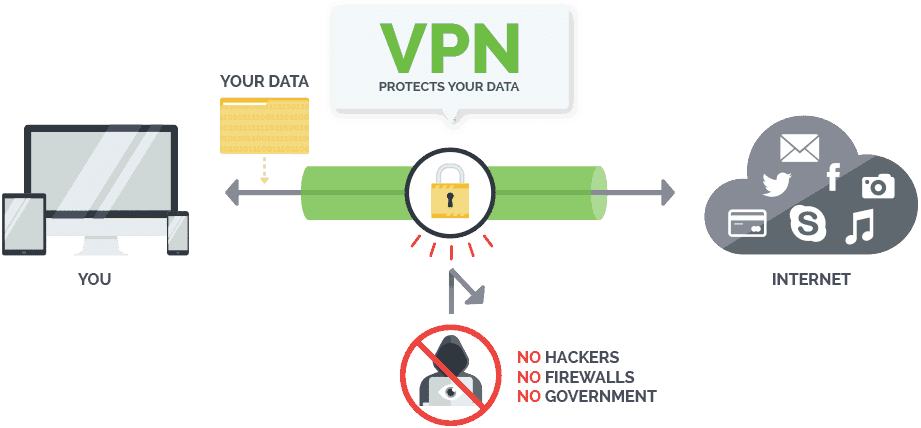
This is how a VPN worksFor this reason, we’d like to advise you to use a Good VPN with Tempest Kodi addon or any other third-party Kodi addon.

Our recommendation

The VPN we recommend for Kodi is IPVanish[/vpn1] because of its solid privacy and security as well as super speeds. The VPN also has servers in almost all regions; so you will be able to unblock content that is otherwise not available in your country.

We have managed to get an amazing 81% discount on IPVanish for all our readers, and so you can take advantage and get your privacy back at a cut-rate fee.

Save 81% of IPVanish now!

Sign up to our newsletter to receive guides and cord-cutting tips for free.

Enabling Unknown sources

Tempest Kodi addon is hosted under the Tempest Repo, a third-party repository. To run it, you therefore need to allow your Kodi to run “apps from unknown sources.” You can do this by going to Addons> Settings> Enable Unknown Sources

From there we can now install Tempest repo and Tempest Kodi addon.

Adding Tempest Repo Source

  • Turn your VPN On. This will avoid repo and addon being blocked by ISPs
  • At the Kodi home screen, click the Settings button on the top left side to open the System
  • Select File Manager, and then double-click “Add-Source”
  • Type the URL https://tempest0580.github.io/ into the window that opens.
  • Below that, name it as “Tempest Repo” You can then click “OK”.

Installing the Tempest Repository

  • At the Kodi Home screen, click “Add-ons” from the left side menu.Intall Tempest Kodi Addon Repository
  • Open the package installer by clicking the open box icon at the top of the menu bar.Kodi Addon Browser
  • Select “Install from Zip File”install from zip file
  • Select the repo you just added above. It will be displayed as “Tempest Repo”find tempest Repo
  • Select “Repo” and then repository.tempest-x.x.x.zipSelect zip file
  • Tempest Repo should now install. Wait for the installation to complete. You will then receive a notification.Find Tempest Repo

Installing Tempest Kodi Addon

  • Now, on the same screen, click “Install from the repository ”install from repository
  • Select “Tempest Repo”Select Tempest repo to go
  • Select “Video Add-ons” and then You will now get an “Install” option. Hit it.Install tempest kodi addon
  • Tempest Kodi Addon will now install. You will get a notification when it’s ready to use.Wait for successful addon install message

Tempest Kodi addon should now be available from your addon list.

Wrap up

You can enjoy the wide array of quality content provided by the Tempest. But, because Tempest is a third-party addon you may end up accessing copyright protected even without noticed; also some streams may be geographically blocked. That’s why we begun at first with the Privacy and security setting up section. So, just remember to turn on your VPN like IPVanish before you can stream anything on any other third-party addon including Tempest. Also you can find on our review the Best VPN Services for streaming purposes.

Have a great journey!

👋 Signup to our newsletter to receive guides and cord-cutting-tips tips for FREE!! Click Here!


Marketing permission: I give my consent to BestDroidPlayer to be in touch with me via email using the information I have provided in this form for the purpose of news, updates and marketing.

Legal disclaimer

BestDroidPlayer.com is in no way affiliated to any streaming application, apk or its addons. Also, we are not associated with the brands here shown as the references are only informative. Bestdroidplayer.com does not verify the legality or security of any apps, apks, addons or services mentioned on this site. We DO NOT HOST any copyright-protected software or streams and we DO NOT broadcast or provide any copyright-protected streams on this website - The content here provided is only informational and it should be used only to access content that is not protected by copyright. We strongly advise our readers to avoid piracy at all costs, if you decide to do so, it is your responsibility - We are not responsible for any of your activities.

If you wish to make a claim, please check our DMCA Notice Policy.

Affiliate disclosure: Bestdroidplayer.com is a reader-supported blog. If you buy a VPN or an Amazon product through our links, we may earn a commission that helps maintaining our blog. Our reviews are totally honest and we only recommend trusted VPN and ecommerce brands.

Filed Under: Kodi Addons Install Guides Tagged With: kodi, Kodi addon, Tempest kodi addon, vpn

Related guides

  • Kodi Addons Install Guides

    How to Install Joker Kodi Builds: Huge selection of Lightweight builds

    26 March 2020

  • Kodi Addons Install Guides

    How to Install Doomzday Kodi Builds – Excellent selection of Builds

    18 May 2022

  • Kodi Addons Install Guides

    How to Install POV Kodi Addon: huge Movies & TV Shows Library

    2 August 2022

  • Streaming Apps

    T-Mobile Better Value plan: $140 for 3 lines, Netflix + Hulu, and a huge 250GB hotspot, with a catch

    21 January 2026

  • Kodi Addons Install Guides

    How to Install Smaug Kodi Addon: High-quality streams without buffering

    30 June 2020

  • Kodi Addons Install Guides

    How to Install Kingdom Kodi Addon: watch high-quality 4K streams

    17 March 2020

Reader Interactions

Leave a Reply

Your email address will not be published. Required fields are marked *

This site uses Akismet to reduce spam. Learn how your comment data is processed.

Primary Sidebar

Search

Follow us

  • Facebook
  • Pinterest
  • Twitter

Featured Posts

Kodi Setup Guide

Most Complete Kodi Setup Guide: All you need to know to use Kodi

Latest Articles

BestDroidplayer article image about VPN issues on Firestick with TV screen and remote.

VPN Not Working on Firestick? 8 Easy Ways to Fix It

4th November 2026 By bestdroidplayer

BestDroidplayer Free99 movie app interface screenshot.

How to Install Free99 Kodi Addon (2026 Guide)

3rd November 2026 By bestdroidplayer

AI video editing scene with 3D character on monitor for streaming.

How 3D Assets Can Improve AI Video and Streaming Content

3rd November 2026 By bestdroidplayer

Person holding smartphone with eSIM app in front of Rome skyline.

What to Compare Before Buying an eSIM Data Plan in Europe

23rd October 2026 By bestdroidplayer

bestdroidplayer

Tested guides for Kodi, Fire TV, Android TV and streaming apps, in English, Portuguese and French since 2014.

We host no files and are not affiliated with any app or addon we cover. Only stream content you have the rights to.

Menu

  • Homepage
  • About Us
  • All Posts
  • Bestdroidplayer FAQ
  • DMCA Notice Policy
  • Affiliate Disclosure
  • Disclaimer
  • Privacy Policy
  • Cookie Policy
  • Advertise with us – Banner Ads
  • Get in Touch
  • HTML Sitemap

About Us

Bestdroidplayer it’s a blog with News, Tips, and Tutorials about the streaming industry.
In this blog, you will find useful tips to cut the cord and save some bucks while you get the best streaming experience.

Read more about us here.

Legal Disclaimer

BestDroidPlayer.com is in no way affiliated to any streaming application, apk or its addons. Also,  we are not associated with the brands here shown as the references are only informative. Bestdroidplayer.com does not verify the legality or security of any apps, apks, addons or services mentioned on this site. We DO NOT HOST any copyright-protected software or streams and we DO NOT broadcast or provide any copyright-protected streams on this website – The content here provided is only informational. We strongly advise our readers to avoid piracy at all costs, if you decide to do so, it is your responsability – We are not responsible for any of your activities.

Copyright © 2026 Bestdroidplayer

EnglishPortuguêsFrançais

We value your privacy

We use cookies for statistics (Google Analytics) to see which guides help our readers. You can accept or refuse: the site works the same either way. Cookie policy