Step-by-step guide to install Pluto TV addon on Kodi. Learn how to set up Pluto TV Repo and stream movies, TV shows, and more.
Bestdroidplayer.com is a reader-supported blog. If you buy a VPN or an Amazon product through our links, we may earn a commission that helps maintaining our blog. Our reviews are totally honest and we only recommend trusted VPN and ecommerce brands. Full affiliate disclosure
If you’re a cord-cutter looking to bring a massive library of free, legal live TV and on-demand content into your Kodi setup, the Pluto TV Kodi addon is one of the best solutions available. Pluto TV has exploded in popularity, offering hundreds of live channels and thousands of movies and TV shows, all supported by ads and completely free. Bringing this experience into Kodi means you can centralize your streaming, mixing Pluto TV’s content with your personal media library and other favorite addons, all within a single, customizable interface.
Unlike many third-party Kodi addons that require adding obscure source URLs and navigating complex menus, the Pluto TV addon is a verified, official addon hosted right inside the default Kodi Add-on Repository. This makes the installation process incredibly straightforward and safe. There’s no need to enable unknown sources or worry about the source’s reliability. In this guide, we’ll walk you through the complete, step-by-step process for installing the Pluto TV Kodi addon on any device, from an Amazon Firestick to an Android TV box or a Windows PC.
Disclaimer: This guide is for educational and informational purposes only. BestDroidPlayer.com does not promote, condone, or encourage piracy or the use of any addon to access copyrighted content illegally. Always ensure you are streaming content that is legally available in your region.
What is the Pluto TV Kodi Addon?
The Pluto TV Kodi addon is the official Kodi integration for the popular free, ad-supported streaming television (FAST) service, Pluto TV. Owned by Paramount, Pluto TV provides a cable-like experience over the internet, featuring a linear channel guide with hundreds of curated channels covering news, sports, entertainment, comedy, and more. The addon brings this entire experience directly into Kodi, allowing you to browse the live channel guide, watch on-demand movies, and catch up on TV series without ever leaving the Kodi interface.
Because this is an official addon maintained in the Kodi repository, it is completely legal and safe to use. You won’t find any of the gray-area, scraped content that plagues many unverified addons. The streams are high-quality and reliable, making it feel like you have a free cable subscription built right into your media center. For anyone who has used the standalone Pluto TV app, the Kodi addon will feel instantly familiar, with the same content library presented in a format optimized for a big screen and remote control.
Pluto TV has become a cornerstone for many cord-cutters, and integrating it into Kodi is a fantastic way to simplify your setup. If you’re exploring other official addons to build out your library, you might also be interested in our guide on how to install Disney Plus Kodi addon for on-demand premium content. To expand your live TV options even further with sports and other niche channels, take a look at guides for community favorites like Mad Titan Sports v2.0.
Pluto TV Addon Features
- 250+ live channels – A massive selection of curated 24/7 live channels, including news from CBSN and NBC News, sports, comedy, and dedicated channels for shows like South Park and Baywatch.
- Thousands of on-demand movies – A frequently updated library of free Hollywood movies that you can watch instantly, with a familiar browsing experience by genre, popularity, or year.
- Full TV series on demand – Complete seasons of classic and popular TV shows available for bingeing at your own pace, from reality TV to dramas.
- Official and verified addon – Hosted directly in the official Kodi repository, meaning you don’t need to enable “Unknown Sources” and can trust the addon is safe and legal.
- Simple, cable-like EPG – An integrated Electronic Program Guide (EPG) that allows you to scroll through what’s playing now and what’s coming up next, just like a traditional cable box.
- Cross-platform Kodi support – Works flawlessly on any device running Kodi 19+ (Matrix) or newer, including Firestick, Android TV, Google TV, Windows, Mac, and Linux.
- 100% free and legal – The ad-supported model means no subscription fees, no logins required, and no questionable legality around the content.
- Completely integrated with Kodi – Seamlessly combines with other addons for a unified streaming experience, and you can even integrate the Pluto TV channels into Kodi’s main PVR guide using an addon like IPTV Merge if you’re an advanced user.
⚠️ Important: Use a VPN with Kodi
Your ISP can see everything you stream on Kodi. To protect your privacy and avoid potential issues, we strongly recommend using a VPN.
How to Install Pluto TV Kodi Addon
This installation method is unique for a guide on our site because Pluto TV is an official Kodi addon. This means you skip the entire process of adding an external source. The addon is already available in the default Kodi Add-on Repository that ships with every Kodi installation. The steps below will work on any device, including the Amazon Firestick, NVIDIA Shield, Android TV, Windows, and macOS. If you enjoy this simple installation, you’ll find this process is very similar for other official addons, like the one we covered in our TMDb Movies Kodi addon guide.
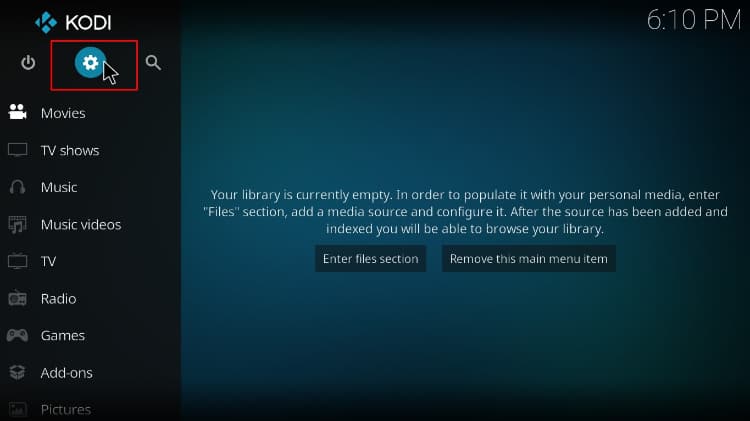
- Launch Kodi and click the Settings gear icon in the top-left corner of the main menu.

- Click Add-ons from the settings menu. This is the open box icon that takes you to the addon browser.
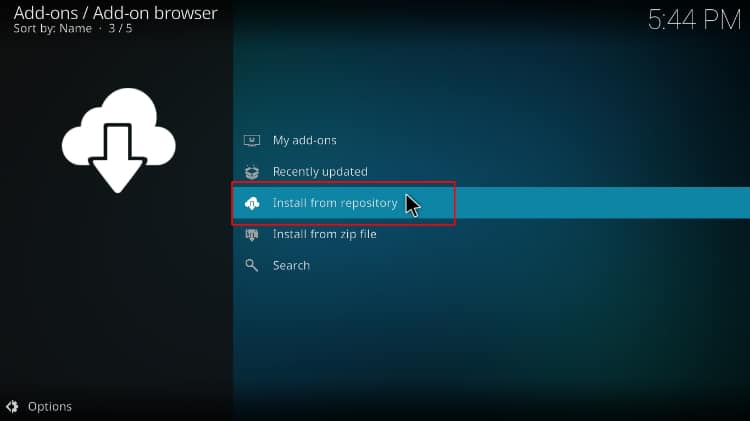
- Select Install from repository. This is the correct path because the addon is in the default Kodi repository, not an external zip file.
- You will now be inside the Kodi Add-on Repository. Scroll down and click Video add-ons.
- Scroll through the alphabetical list of video addons and find Pluto TV. Click on it to open the addon’s information page.
- Click the Install button in the bottom-right corner of the information screen.
💡 Tip: While Pluto TV is legal to use, your ISP can still monitor your streaming habits. Using a VPN is the best way to prevent bandwidth throttling and keep your entire Kodi activity private.
- A pop-up window will appear listing the other dependencies and core addons that need to be installed alongside Pluto TV. Click OK to proceed.
- Wait for the installation process to complete. You can monitor the progress bar and eventually look for a Pluto.TV Add-on installed notification in the top-right corner.
- Installation is now complete. You can access Pluto TV by going back to the Kodi home screen.
- To find the addon, go to Add-ons from the main menu, and then select Video add-ons.
- Scroll down and click on Pluto TV to launch it.
- You will be taken to the main Pluto TV menu where you can choose between On Demand content and the Live channel guide.
- To start streaming, simply select a live channel or on-demand title and enjoy!
Once you’re set up, you’ll find that Pluto TV is incredibly easy to navigate. The on-demand section is broken down into clear categories like Movies, TV Shows, and Entertainment, while the Live section gives you that traditional cable experience. If you are also looking for addons that specialize in high-quality movie metadata and discovery, you should check out our guide on the Infinity Kodi addon, which pairs wonderfully with a live TV source like this one. For those interested in a more dynamic and customizable on-demand experience, the Magneto Module addon is another excellent resource.
Frequently Asked Questions
Yes, it is 100% free to use. Pluto TV is supported by on-screen advertisements, similar to how traditional over-the-air TV or cable TV works. You will see ads play periodically during shows, but you will never be asked to provide payment information or a subscription.
No. One of the biggest advantages of the Pluto TV addon is that it is a verified, official addon hosted in the Kodi Add-on Repository. You only need to enable ‘Unknown Sources’ in the security settings if you are trying to install a third-party addon from an external zip file, which is not the case here.
Pluto TV offers a robust mix of over 250 live channels and a large library of on-demand content. Live channels cover categories like news (e.g., CBS News, Bloomberg), sports, comedy, classic TV, and entertainment. The on-demand section features thousands of movies and TV shows across various genres, all available to stream instantly.
The Pluto TV service is geo-restricted and is only officially available in certain regions, including the United States, parts of Europe, Latin America, and the UK. If you are in a region where the service is not available, you might need to use a VPN to connect to a server in a supported country. Additionally, ensure your Kodi version (19+ Matrix or newer) is up to date to support the addon properly.
Absolutely. Using a VPN is highly recommended to stay safe while streaming on Kodi. A VPN encrypts your internet traffic and masks your IP address, preventing your ISP from seeing your streaming activity. It can also help you access Pluto TV if you are traveling abroad and want to bypass regional blocks to keep watching your favorite channels.
Conclusion
The Pluto TV Kodi addon is a must-have for any streamer looking to add a colossal amount of free, legal content to their media center. With its straightforward installation via the official Kodi repository, you can go from a blank home screen to a fully-loaded channel guide in just a few minutes. The combination of live TV news, sports, and comedy channels with an ever-refreshing library of on-demand movies and shows makes it one of the most valuable official addons available.
By centralizing your live TV alongside your other Kodi addons, you reduce the need to switch between different apps on your streaming device. This creates a much smoother and more integrated home theater experience. As you continue to customize your Kodi setup, remember that you can supplement this with addons specializing in specific content libraries, and always make sure your connection is protected with a reliable VPN. Using a VPN ensures your viewing habits remain private and can help you overcome any regional content blocks, making your entire Kodi experience more open and secure.




Leave a Reply